Troubleshooting
The guide for your DAW also ends with a Troubleshooting section.
LIOBOX²
The LIOBOX² does not switch on
- Check the connections.
- Use the cable provided.
The green check icon does not appear
- Check that the DAW is started and configured (and GoorooLink too, if you use Pro Tools, Logic Pro, Cubase or QLab).
- Check that the correct script is loaded in the MIDI input and output settings of the DAW, on LIOBOX² port 1.
- If you use a hub or a MIDI card, check the connection to the computer.
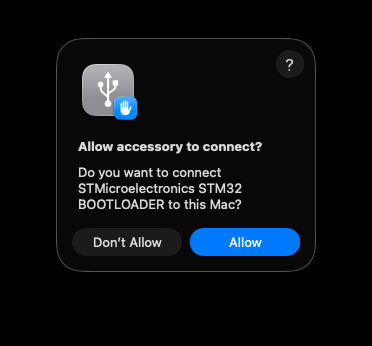
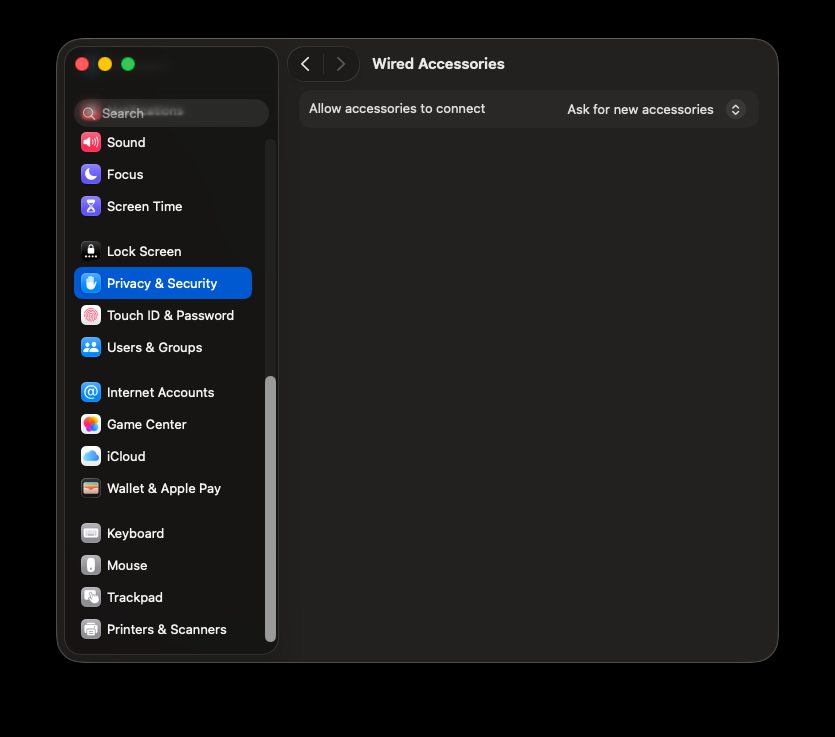
- On macOS, check that the LIOBOX² is allowed as a USB accessory (a prompt appears the first time you connect it). If you clicked Don't Allow by mistake, go to macOS System Settings → Privacy & Security → Accessories and change the setting. See also LIOBOX² not detected.
Song name not displayed
Check that:
- A name has been entered.
- The naming convention has been followed.
- The name does not start with the prefix
(), which hides the song.
No name is displayed even though the LIOBOX² is connected
- The project exceeds the limit of 120 songs that the LIOBOX² can manage.
A "caution" symbol appears at the top of the screen
Check that:
- Both sessions (Main / Spare) have the same song names, in the same order.
- Both computers are in the same mode (arrangement or session).
The song name in the setlist is displayed in red
- The song no longer exists in the DAW session.
- The song name or its information is incorrect.
GoorooLink
Auto-update fails
By default, macOS prevents applications from accessing, modifying or creating files and folders outside the application itself.
To auto-update, GoorooLink must copy files into several folders. The first time, macOS asks for your confirmation.
You can also grant the permissions in the macOS Settings, under Privacy & Security. Grant them for:
- App Management (copies the script into Ableton)
- Files & Folders (local script, firmware and software files)
| App Management | Files & Folders |
|---|---|
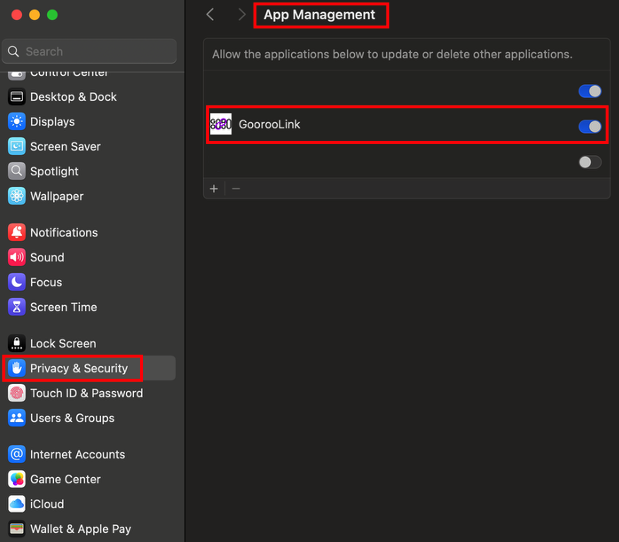 | 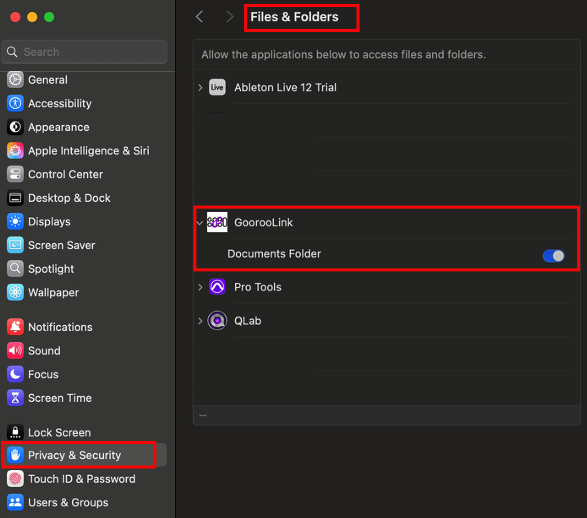 |
If GoorooLink is not listed, add it with the + button at the bottom.
LIOBOX² not detected
macOS can block USB accessories when a new device is connected. Always click Allow when the computer asks whether the LIOBOX² can connect.
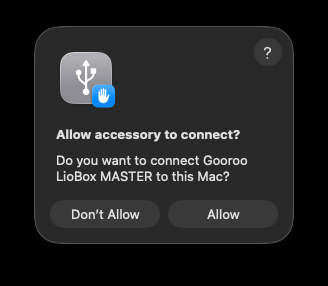
If you clicked Don't Allow, the prompt may not appear again, and GoorooLink cannot use the LIOBOX².
To reset this, go to System Settings → Privacy & Security → Accessories (at the bottom) and open the Allow accessories to connect list. Selecting the same option again is enough.
Recovery: LIOBOX² disconnected during reflashing
This procedure only applies to the LIOBOX².
If the update is interrupted (USB cable removed, computer turned off or put to sleep, …), the memory of the LIOBOX² is corrupted and the device can no longer start correctly.
To recover, follow this procedure:
- Remove all USB cables from the LIOBOX².
- Keep the LIOBOX² MENU button pressed (the upper left one).
- While holding it, plug the USB cable into the USB Spare (port B).
- Open GoorooLink and select the DEVICE → DEVICES module. The LIOBOX² appears as a DFU device.
- Proceed with the firmware update as described in Device update.
Firmware update problems
This section covers the problems met most often when updating the LIOBOX² firmware from GoorooLink (DEVICE → DEVICES → Device update, see Device update).
During an update, GoorooLink asks the LIOBOX² to restart in update mode (DFU mode). The LIOBOX² then reappears on the computer as a different USB device, and GoorooLink recognizes it and sends the new firmware, which takes 10 to 20 seconds. Most problems happen in the first part: GoorooLink does not see the LIOBOX² restart in time, or does not recognize it.
If an update fails, even halfway, the LIOBOX² can normally be recovered with the manual DFU procedure below.
Before you start an update
Most failures disappear when these conditions are met:
- The LIOBOX² is plugged directly into a USB port of the Mac, on its USB B port (Liobox SPARE), with the cable provided. No hub, no dock, no adapter chain. Only USB-connected devices can be updated: a LIOBOX² reached through a proxy cannot.
- The device status in DEVICE → DEVICES is Authenticated (see Device status), and the Device update section is visible.
- GoorooLink is at its latest version (see Auto-updates).
- Nothing else is sending data to the LIOBOX² while the update starts: wait for any Send to LIOBOX transfer to finish, and close your DAW sessions.
- The Mac stays awake and is not busy with another heavy task (renders, backups, large file copies).
- Only one LIOBOX² is connected.
"Device failed to enter DFU mode (timeout)"
GoorooLink waits a few seconds for the LIOBOX² to restart in update mode, then gives up. On a busy Mac, or when the LIOBOX² is connected through a hub, the restart can take longer than that. The LIOBOX² may then be waiting in update mode even though GoorooLink reports an error.
- Open DEVICE → DEVICES. If the LIOBOX² now appears as a DFU device, select it and run Start Firmware Update from there.
- If it does not appear, quit GoorooLink completely (quit, not run in background), unplug the LIOBOX², plug it directly into the Mac and launch GoorooLink again. Try the update again.
- If the error comes back, use the manual DFU procedure. It does not depend on GoorooLink detecting the restart.
The update does not start, or the status stays on "Booting to DFU mode"
If the status text never changes, or every device shows Another update in progress:
- Quit GoorooLink completely and launch it again. This resets the update.
- Check that the LIOBOX² still works normally. If it does not start, use the manual DFU procedure.
- Try again with the conditions of Before you start an update.
If the problem appears right after an interrupted firmware download, restart GoorooLink and download the firmware again before retrying.
The progress stays at 0% or stops moving
A complete update takes 10 to 20 seconds. If the progress has not moved for several minutes:
- Leave the LIOBOX² connected and the Mac awake for a few more minutes.
- If nothing changes, quit GoorooLink, unplug the LIOBOX² and use the manual DFU procedure to flash it again. The procedure is designed for an interrupted update.
Only interrupt an update that has been stuck for several minutes. Before that, DO NOT DISCONNECT THE LIOBOX².
The LIOBOX² works but cannot be updated
If the LIOBOX² is recognized and works normally but the Device update section is missing, or pressing Start Firmware Update has no effect and ends in a timeout:
- Change the USB port, use a port directly on the Mac, and avoid hubs and docks.
- Make sure the cable is the one provided (or a data cable, not a charge-only cable).
- Check the macOS permissions of GoorooLink (see Auto-update fails) and that the LIOBOX² is allowed as an accessory (see LIOBOX² not detected).
- If the problem persists, use the manual DFU procedure.
Manual DFU procedure
This is the most reliable way to update the firmware, or to recover a LIOBOX² after any of the problems above. The LIOBOX² is put in update mode by hand, so GoorooLink does not have to detect the restart.
- Quit your DAW and remove all USB cables from the LIOBOX².
- Keep the LIOBOX² MENU button pressed (the upper left one).
- While holding it, plug the USB cable into the USB Spare (port B) of the LIOBOX², directly on the Mac.
- Open GoorooLink and select DEVICE → DEVICES. The LIOBOX² appears as a DFU device.
- Select it and proceed with the firmware update as described in Device update. Do not disconnect it during the update.
- When the update is complete, the LIOBOX² restarts normally.
Contact support
If the update still fails, contact Gooroo Controllers support and provide:
- The GoorooLink version and macOS version.
- The LIOBOX² firmware version before the update, and the one you tried to install.
- How the LIOBOX² is connected (port used, hub or not, Apple Silicon or Intel Mac).
- The exact message shown in GoorooLink and the step reached (for instance "Booting to DFU mode" or "Erasing").
- Whether the manual DFU procedure was tried, and its result.