Setlists
To access setlist management, enter MENU → SETLIST.
Setlists allow creating customized, quickly accessible lists that can be changed on the fly. They remove the need to change the active project.
The LIOBOX² setlists are based on, but never modify, the Ableton, Bitwig, Reaper, Pro Tools, Logic Pro or Cubase projects.
Depending on the selected mode, setlist management behaves differently:
- Ableton, Bitwig, Reaper, Pro Tools, Logic Pro, Cubase (native modes): songs/markers are gathered from the active project and can be added to the setlist.
- MIDI: the setlist allows the creation of internal markers to which individual MIDI messages are associated, allowing direct mapping via DAW settings.
Created setlists are only compatible with the mode they were created in. For instance, an Ableton setlist will only be compatible with Ableton mode.
Up to 9 setlists can be created.
Setlists can be managed directly from the LIOBOX²:
- Creation
- Modification (song/marker list management, setlist renaming)
- Duplication
- Removal
They can also be edited from a computer with the GoorooLink.
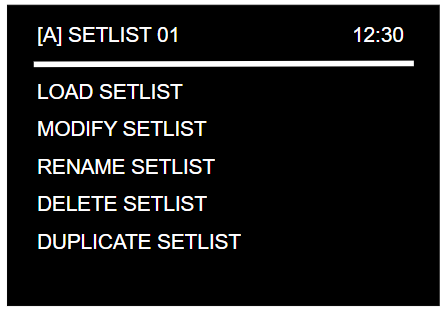
Creation
In the SETLIST menu, select the last entry + ADD [MODE] SETLIST. Make sure to select the proper mode prior to creating the setlist.
This entry is not available if the maximum number of setlists is reached.
Modification: load setlist
To have a setlist active, it is necessary to load it. From the setlist menu, select Load Setlist.
The name of the loaded setlist is permanently displayed in the bottom right-hand corner of the screen. The setlist name can appear red if the mode is different from the type of setlist created.
Modification: song/marker list management
Song loading and management differs depending on the DAW used. See Setlist mode for the DAW modes, and MIDI marker mode for MIDI.
Modification: renaming
The setlist name can be modified. The list of allowed characters is:
- Letters:
A-Z - Numbers:
0-9 - Parentheses:
( ) - Square brackets:
[ ] - Special characters:
#,&,+,/ - Space
Press the knob to move to the next character and to confirm the newly assigned name.
Duplication
Enter the setlist and scroll to the DUPLICATE SETLIST entry. Once confirmed, the menu switches back to the SETLIST menu where the duplicated setlist appears.
Removal
Enter the setlist and scroll to the DELETE SETLIST entry. Confirm twice and the setlist will be erased.