Ableton, Reaper, Bitwig, Pro Tools, Logic Pro and Cubase modes
All tracks mode
Switch to ALL TRACKS mode from the Mode menu.
| Ableton | Reaper |
|---|---|
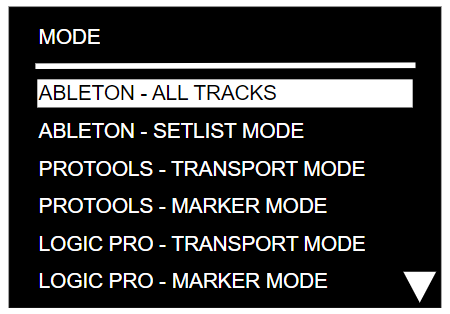 | 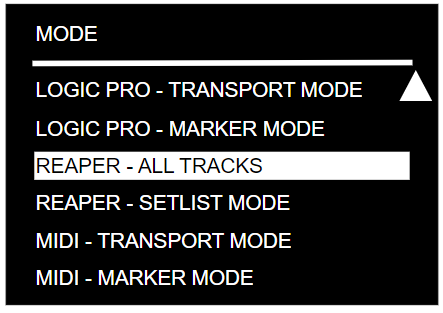 |
ALL TRACKS mode gives access to all songs present in the DAW session, sorted according to their order in the session.
This makes it possible to move around and launch any song in your set.
If Error on duplicate song is enabled, the LIOBOX² analyzes song names and indicates whether two songs (scene/locator) have the same name, prompting you to correct them.
Setlist mode
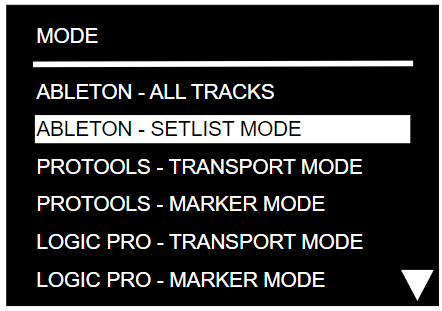
SETLIST mode lets you select and rearrange the song order. This way, the LIOBOX² only displays the songs in the show's setlist, in the desired order. All this without ever modifying the DAW session or touching the computer.
Setlists can then be renamed and saved in the LIOBOX²'s internal memory.
Switch to Setlist mode from the Mode menu:
| Ableton | Reaper |
|---|---|
 | 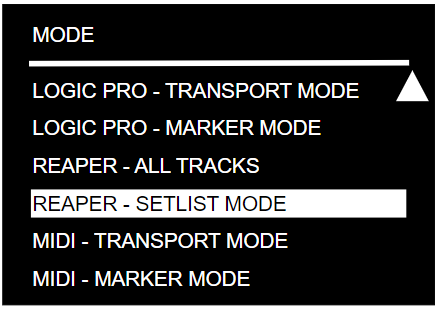 |
Setlist creation
Add a setlist by selecting + ADD [MODE] SETLIST in the MENU → SETLIST menu. It is necessary to select the mode (Ableton, Reaper, Pro Tools, …) in the MENU → MODE menu prior to creating the setlist.
The mode's first letter (A/B for Ableton/Bitwig, R for Reaper, …) is prepended to the setlist name to indicate the associated mode.
When songs are added to a setlist, the accumulated time is displayed at the top of the window, next to the name of the setlist.

Add songs to the setlist
Once a setlist has been created, songs can be added. The list of songs is directly loaded from the active Ableton, Bitwig, Reaper, Pro Tools, Logic Pro, Cubase or QLab project.
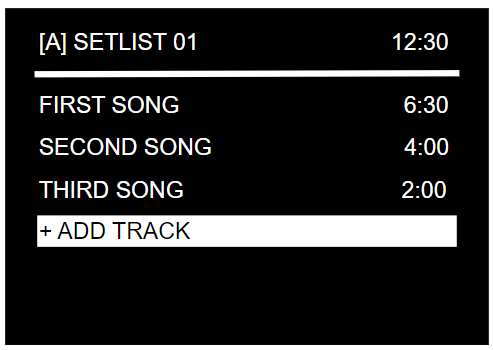
To add a song, enter the created setlist and select MODIFY and + ADD TRACK. The list of preloaded songs appears. Click to add songs. The same song can be added multiple times.
The duration of each song is indicated next to its name (the duration is entered in the title according to the naming convention).
| Setlist menu | Setlist / MODIFY menu | ADD TRACK menu | Setlist / MODIFY menu |
|---|---|---|---|
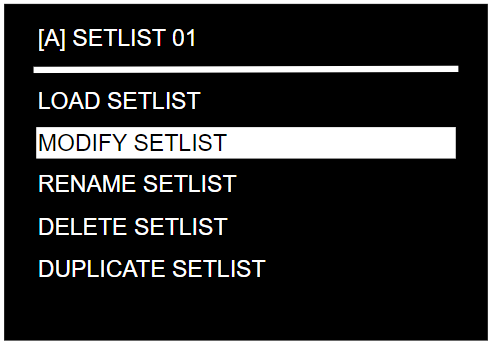 |  | 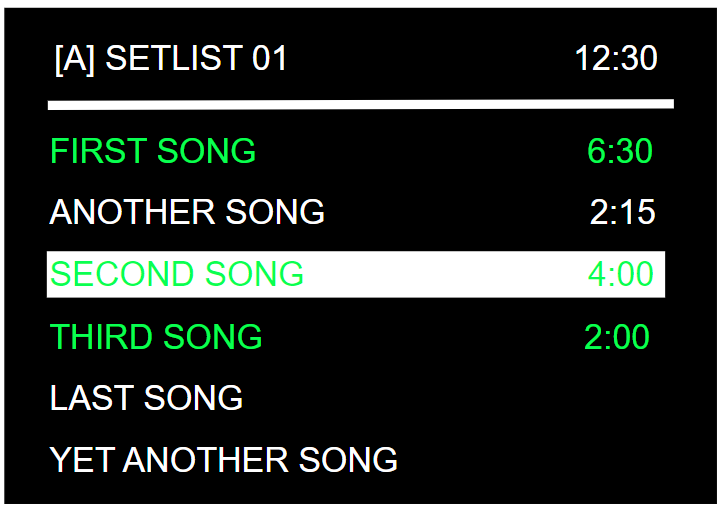 |  |
When a song is present in the setlist, it appears in green.
Manage setlists
Setlists can be renamed (maximum of 12 characters), duplicated and modified at any time. See Setlists.
If a song in the loaded setlist is not present in the DAW session, it is displayed in red on the Play screen.
Up to 9 setlists can be created.
Load a setlist
To be active in Setlist mode, the mode must be set to the Setlist mode in the MODE menu.
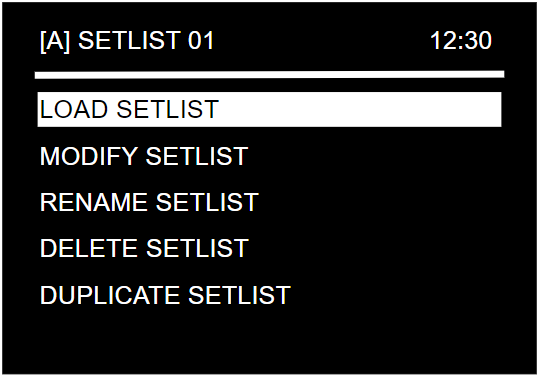
The setlist name appears in red on the Play screen if the loaded setlist's mode is different from the active mode.
Track position in session/setlist
The position of the current song in the session or setlist is constantly displayed at the top of the screen.
Track naming convention
The LIOBOX² screen can be used to display song BPM, key and duration information.
To do this, enter them in the song name according to the following naming convention:
song_name ; bpm ; key ; duration
- Duration shall be in the format
mm:ss. - If a value is not necessary, leave the field empty and omit the
;. - If a song is not to be transmitted to the LIOBOX², add the prefix
(). Example:()song number 1.

Compatible characters
The following characters are compatible with the LIOBOX². Any other character is filtered out.
- Upper case:
AtoZ - Numbers:
0to9 - Parentheses:
( ) - Square brackets:
[ ] - Hashtag:
# - Ampersand:
& - Plus:
+ - Slash:
/ - Space
Names that are not transmitted
A name starting with one of the following is not transmitted to the LIOBOX²:
()[](LOOP_**>>>+LOOP
The following marker names are also filtered out from the marker list received by the LIOBOX²:
AUTOSTOP(STOP)(NEXT)STOPSONG ENDPLAYNEXTSTOPBOTEASY LOOPERNEXTCUE
Pro Tools only
In Pro Tools, the Memory Location Comments can be used in place of the marker extra-information naming convention. Information can be preceded by key:, duration: or bpm:.
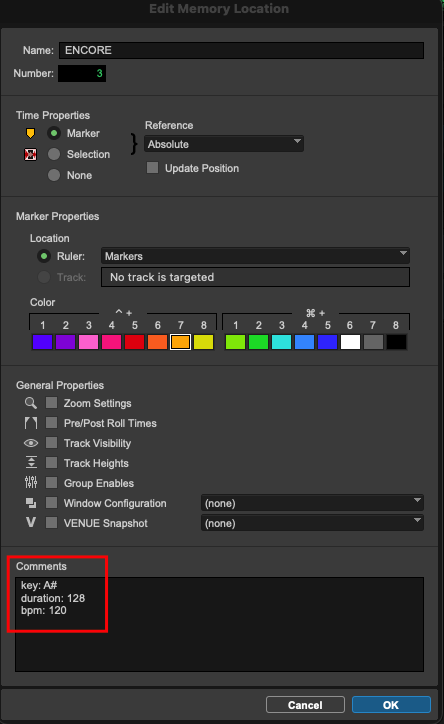
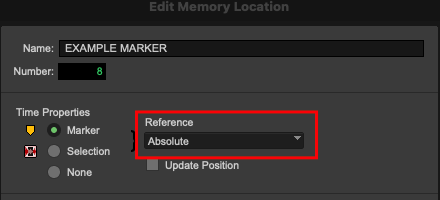
Pro Tools marker reference
The marker reference shall be of type Absolute. Otherwise, the marker is discarded (see Discarded markers).
Logic Pro only
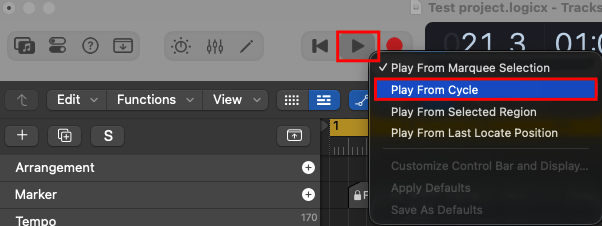
Deactivate Play from Cycle (right-click on the Play button) to avoid having the playhead reset to its original position instead of playing the selected marker.