Settings
Refresh
Although the LIOBOX² always updates automatically when the Ableton, Bitwig, Reaper, Pro Tools, Logic Pro or Cubase session is modified, you can also launch a manual refresh via the REFRESH menu.

Screen preference
MENU → SETTINGS → SCREEN
The default screen option is ADVANCED.
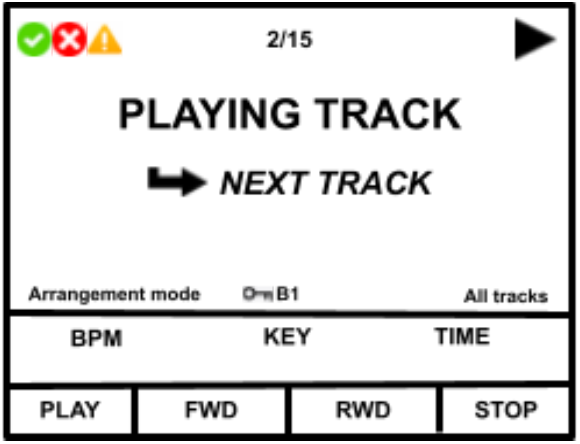
Other screen options:
| STANDARD (v1) | PAD |
|---|---|
 |  |
| TIME | SIMPLE |
|---|---|
 | 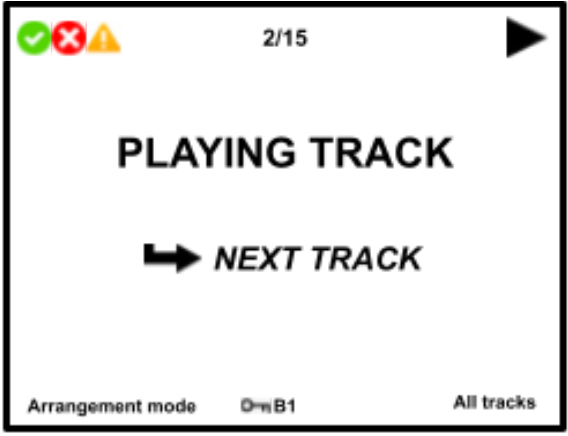 |
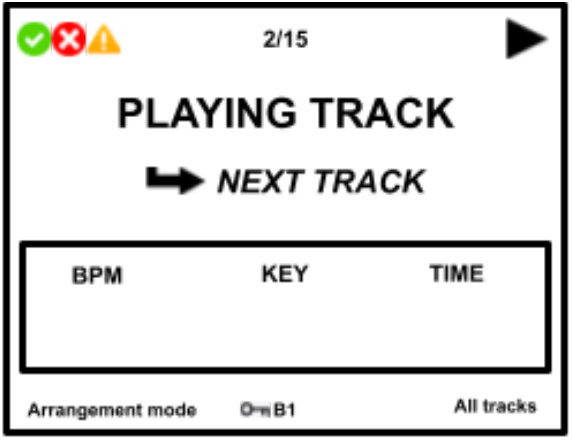
BPM: the BPM only accepts integer values without decimals.
KEY: the key can be entered up to a maximum of 4 characters. This field can also be used to enter other information, up to a limit of 4 characters.
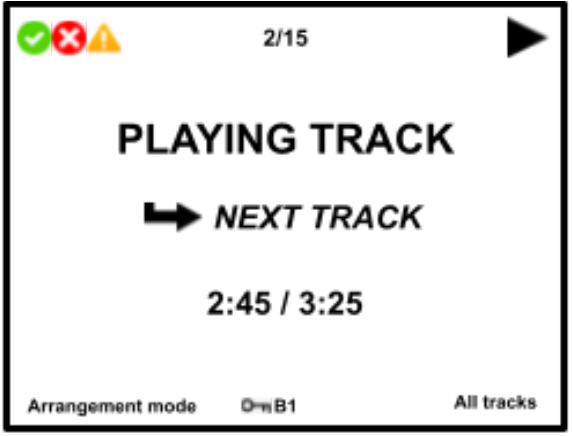
DURATION: the song duration can be entered as "minutes:seconds". The duration can also be entered in seconds, and the LIOBOX² converts it to the minutes:seconds format.
Theme
MENU → SETTINGS → THEME
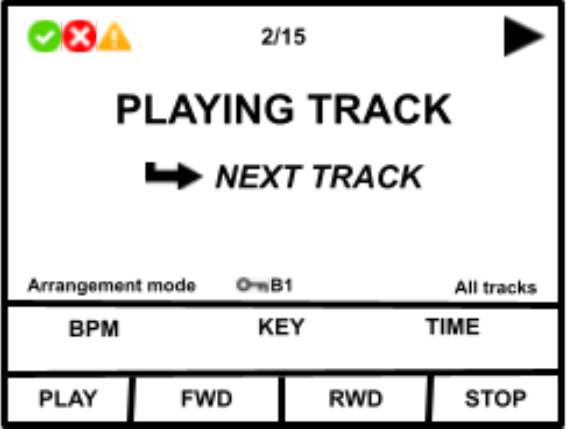
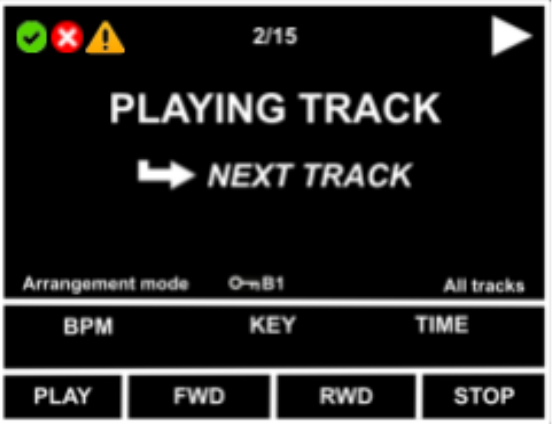
The screen can be switched between DARK mode (black background) for dark spaces, and DAY mode (white background) for easy viewing of the screen even in bright lighting conditions.
| DAY | DARK |
|---|---|
 |  |
Brightness
MENU → SETTINGS → BRIGHTNESS
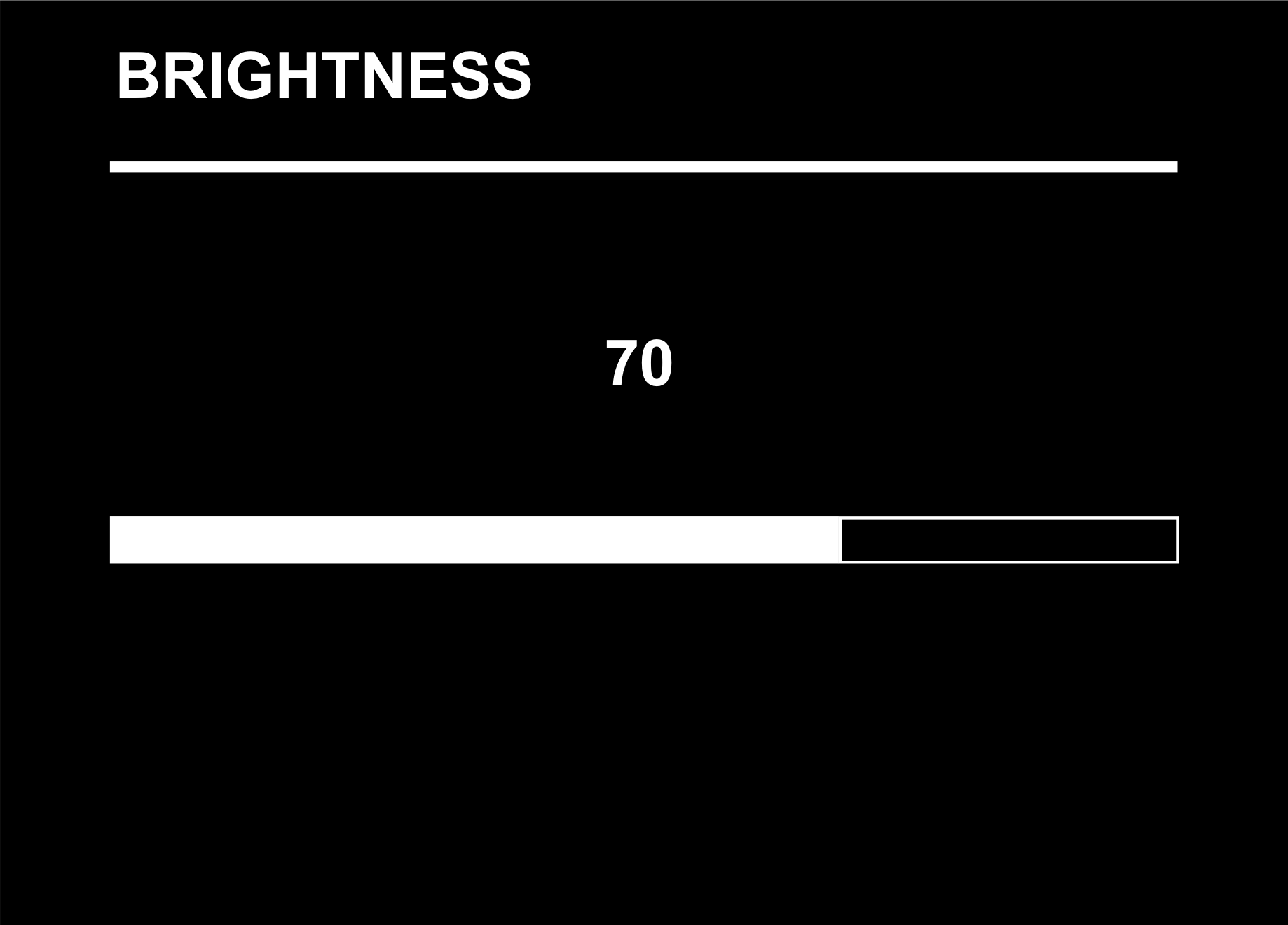
Rotate the knob to change both the display brightness and the pad backlight intensity.
Advanced settings
MENU → SETTINGS → ADVANCED SETTINGS
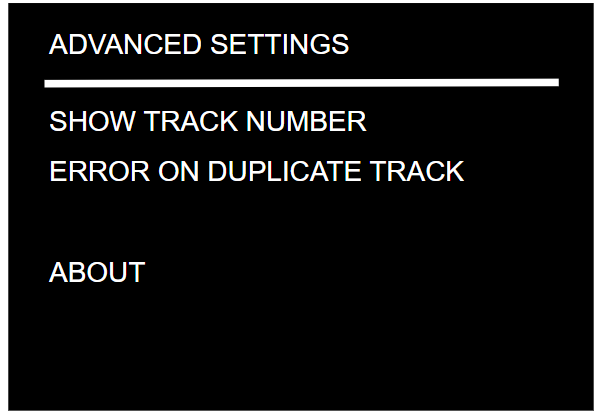
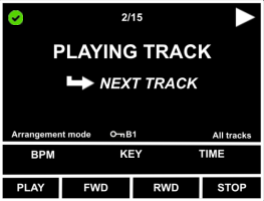
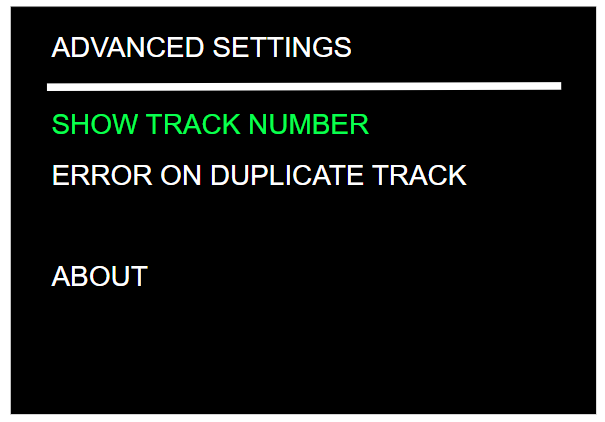
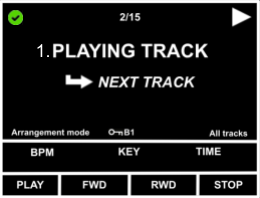
Show track number
Prepends the song number before the song name.
| ADVANCED SETTINGS menu: SHOW TRACK NUMBER deactivated | PLAY screen |
|---|---|
 |  |
| ADVANCED SETTINGS menu: SHOW TRACK NUMBER activated | PLAY screen |
|---|---|
 |  |
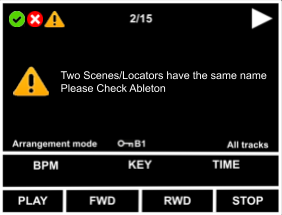
Error on duplicate track
Displays an error message if two setlist songs have the same name.
Loop on bar / Loop on beat
By default, when the LIOBOX² sends a "Loop In" signal to the DAW, the script calculates the closest previous bar (loop on bar).
If the setting is changed to Loop on beat, the script calculates the closest previous beat (1/4 for instance).
Reset
MENU → SETTINGS → RESET
It is possible to retrieve the LIOBOX² default configuration and settings via the Reset menu.
- Pad config reset: sets the default configuration of the pads.
- Factory reset: resets the entire LIOBOX² (theme, mode, screen preference, brightness, pads, advanced settings).