Mode and pad configuration
Mode
Available modes are:
- Ableton, Bitwig, Reaper, Pro Tools, Logic Pro, Cubase modes
- All songs
- Setlist
- MIDI mode
- Transport
- Marker
- QLab mode
Refer to the modes section for more information.
Pad config
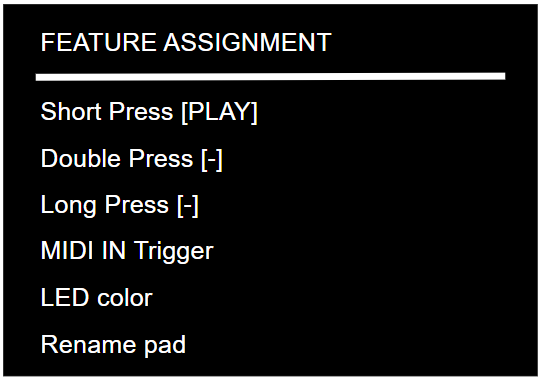
To enter the pad configuration menu, go to MENU, select PAD CONFIG, select the bank (rotate the knob) and select the pad to be configured.
| MENU | PAD SELECTION | FEATURE ASSIGNMENT |
|---|---|---|
 |  |  |
Pad feature
All pads except MENU and BACK/BANK can be reassigned to custom features.
A pad can have any of the following events (and/or):
- Short press
- Double press
- Long press
Events can be activated or deactivated.
Depending on the selected mode, pads can be assigned to the following features:
| Ableton, Bitwig, Reaper, Pro Tools, Logic Pro, Cubase | MIDI | QLab |
|---|---|---|
| NONE | NONE | NONE |
| PLAY LIOBOX MARKER | SELECT MARKER | PLAY CUE |
| PLAY (TRANSPORT) | PLAY | PAUSE |
| PAUSE | PAUSE | PREV CUE |
| STOP | PREVIOUS MARKER | NEXT CUE |
| PREV LIOBOX MARKER | FAST-REWIND | PANIC |
| PREV MARKER (TRANSPORT) | NEXT MARKER | CUSTOM MIDI |
| FAST-REWIND | FAST-FORWARD | |
| RESTART MARKER | CUSTOM MIDI | |
| NEXT LIOBOX MARKER | ||
| NEXT MARKER (TRANSPORT) | ||
| FAST-FORWARD | ||
| LOOP IN/OUT | ||
| LOOP IN | ||
| LOOP OUT | ||
| LOOP ON/OFF | ||
| LOOP CREATE X | ||
| CUSTOM MIDI |
Notes:
- Play or Play (Transport) corresponds to the DAW Play.
- Play LIOBOX Marker plays the next song.
- Fast-Rewind and Fast-Forward can only be assigned to the Long press pad event.
- Next or Prev Marker (Transport) corresponds to the DAW Next event (next/previous in the project).
- Next or Prev LIOBOX Marker selects the next or previous marker from the setlist.
- The loop features are described in Loop on-the-fly.
The activated feature appears in green.
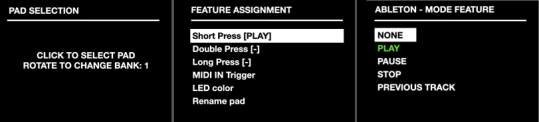
The LIOBOX²'s transport functions transit on port 1. We advise not to use MIDI channels 1, 2, 3 and 4, to avoid conflicts depending on the notes or CC sent.
Custom MIDI
All events can trigger a Custom MIDI event, which can be a MIDI Note, a Control Change or a Program Change. The screen differs depending on the selected type.
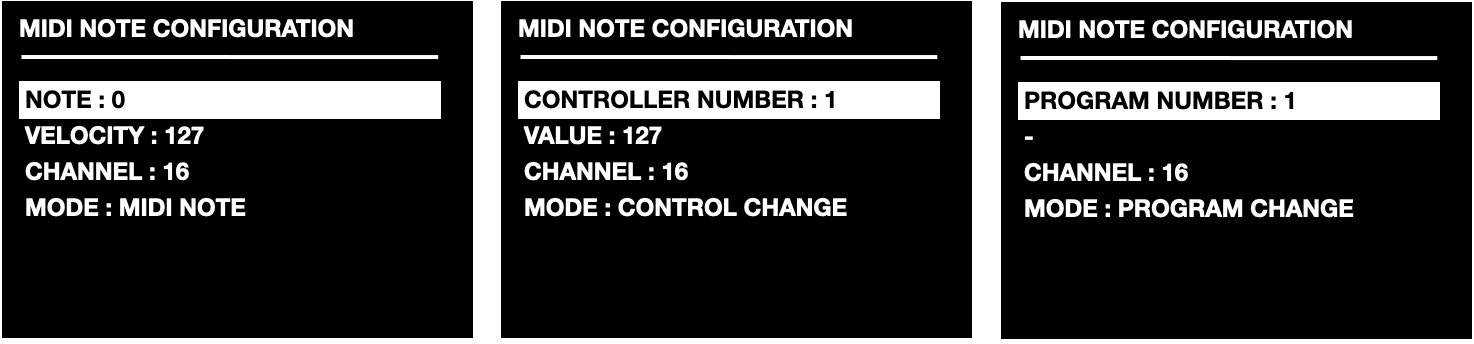
Use Custom MIDI to activate loops or autotune.
Pad MIDI IN trigger
Pads can be controlled by an external instrument, such as a drum module or a footswitch connected via mini-jack to the LIOBOX²'s MIDI IN.
The LIOBOX² can simulate a Short press event of any pad from a custom MIDI message.
To enable this feature:
- Enable MIDI IN from the first MENU screen (the entry turns green).
- Activate the pad MIDI IN Trigger.
- Assign a triggering MIDI message.
| Global MIDI IN activated | Specific pad MIDI IN | MIDI message config |
|---|---|---|
 |  |  |
Select the MIDI message that triggers the pad function from the menu. Activate the function by clicking ACTIVATE: a MIDI logo appears next to the pad name on the main screen.
To validate that the MIDI IN trigger is activated, check that:
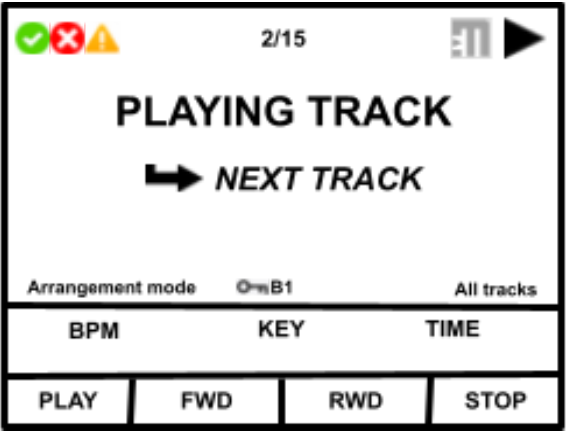
- The MIDI logo background next to the PLAY icon is white.
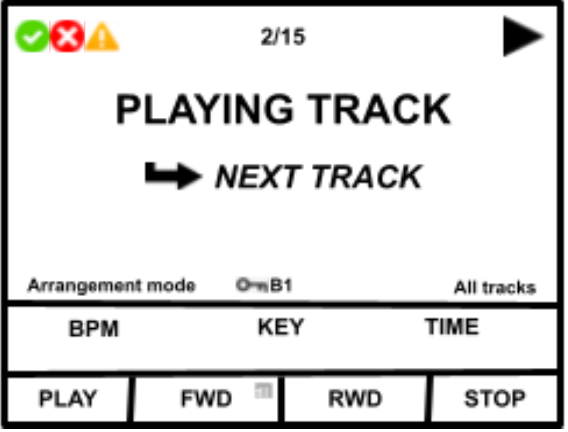
- The MIDI logo for the customized pad is visible and has a white background next to the pad name.
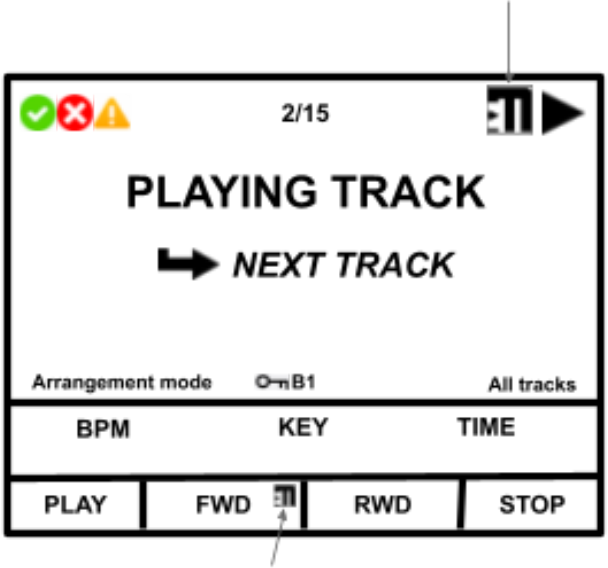
If the global MIDI IN is deactivated, or no pad has a MIDI IN enabled, the associated logo appears in gray:
| Global MIDI enabled but no pad has a MIDI IN trigger activated | Pad MIDI IN trigger activated but global MIDI disabled |
|---|---|
 |  |
Pad LED color
Pads are RGB backlit.
Up to 9 colors can be selected from the LED color menu: Black (off), White, Blue, Red, Green, Yellow, Pink, Cyan, Orange.

Rename pad
Each pad can be renamed. The name appears depending on whether ADVANCED or PAD NAMES is selected in the Screen preference.
Shared pad memory
The following modes behave similarly and therefore share their pad memory space. This means that if a pad assignment is made in one mode, it also modifies the assignment in the other.
- Ableton shares pad memory with Bitwig.
- Logic Pro shares pad memory with Cubase.