Reaper
Setup
The following instructions are given for Reaper v7.27. Reaper is frequently updated by its developer, therefore the instructions might vary slightly from version to version.
Prerequisite: SWS/S&M extension
Download and install the SWS/S&M extension for REAPER.
Windows: simply run the installer.
macOS:
-
Download: select ARM64 if using Apple M processors or X64 if using Intel processors.
-
Launch the installer.
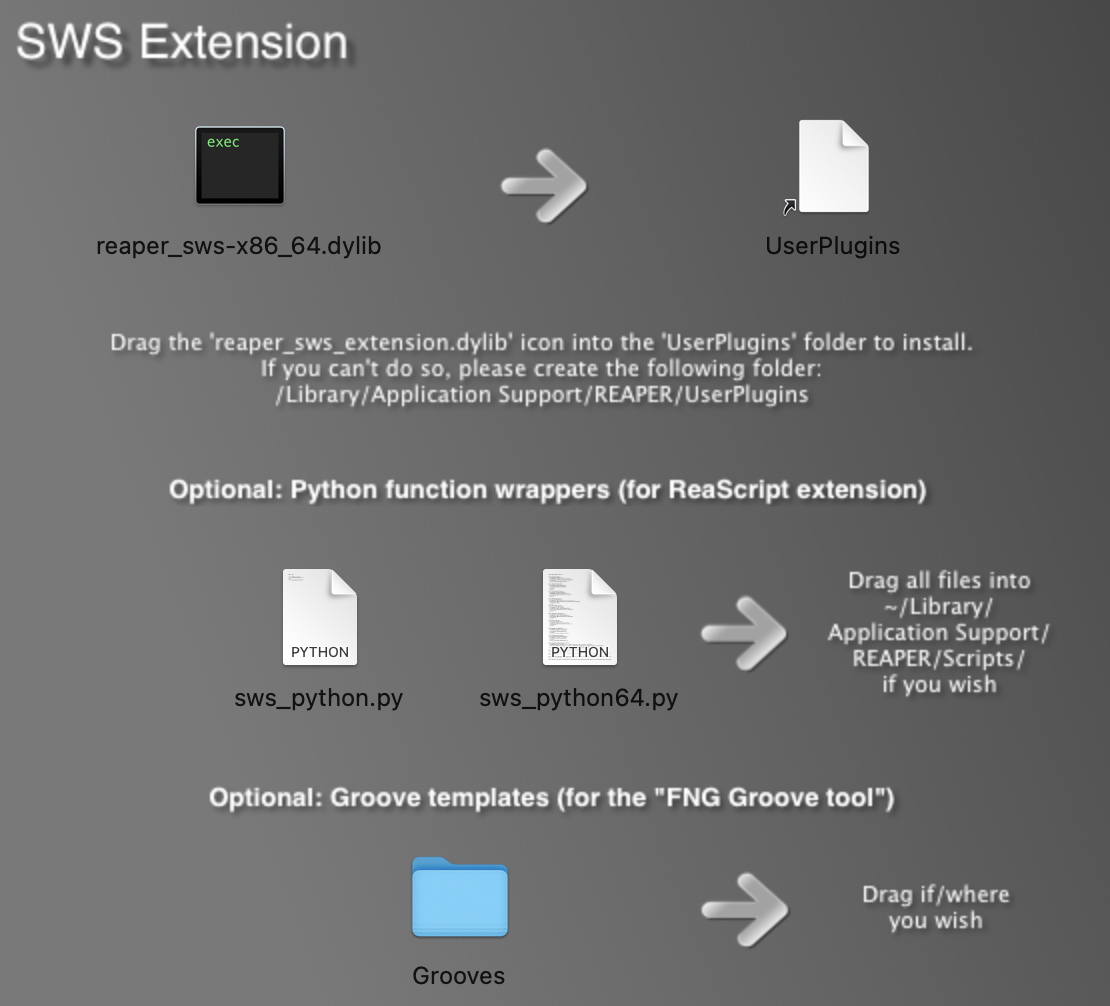
-
Drag and drop
reaper_sws-PROCESSOR.dylibinto the/Library/Application Support/REAPER/UserPluginsfolder. If the folder does not exist, create it manually. The other files are not required for the LIOBOX² to run.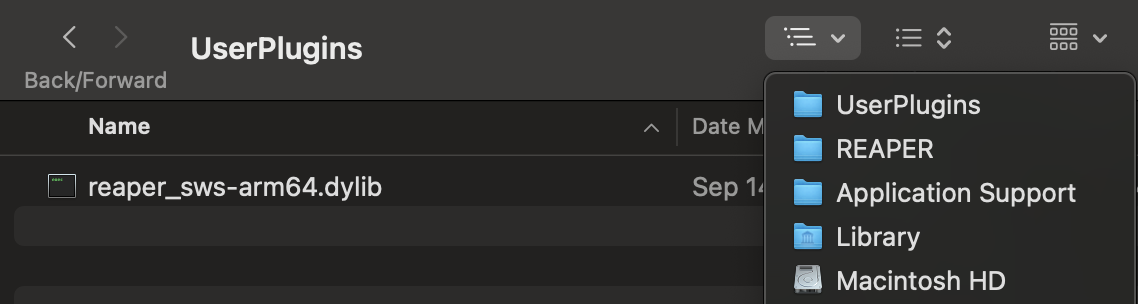
-
Launch REAPER.
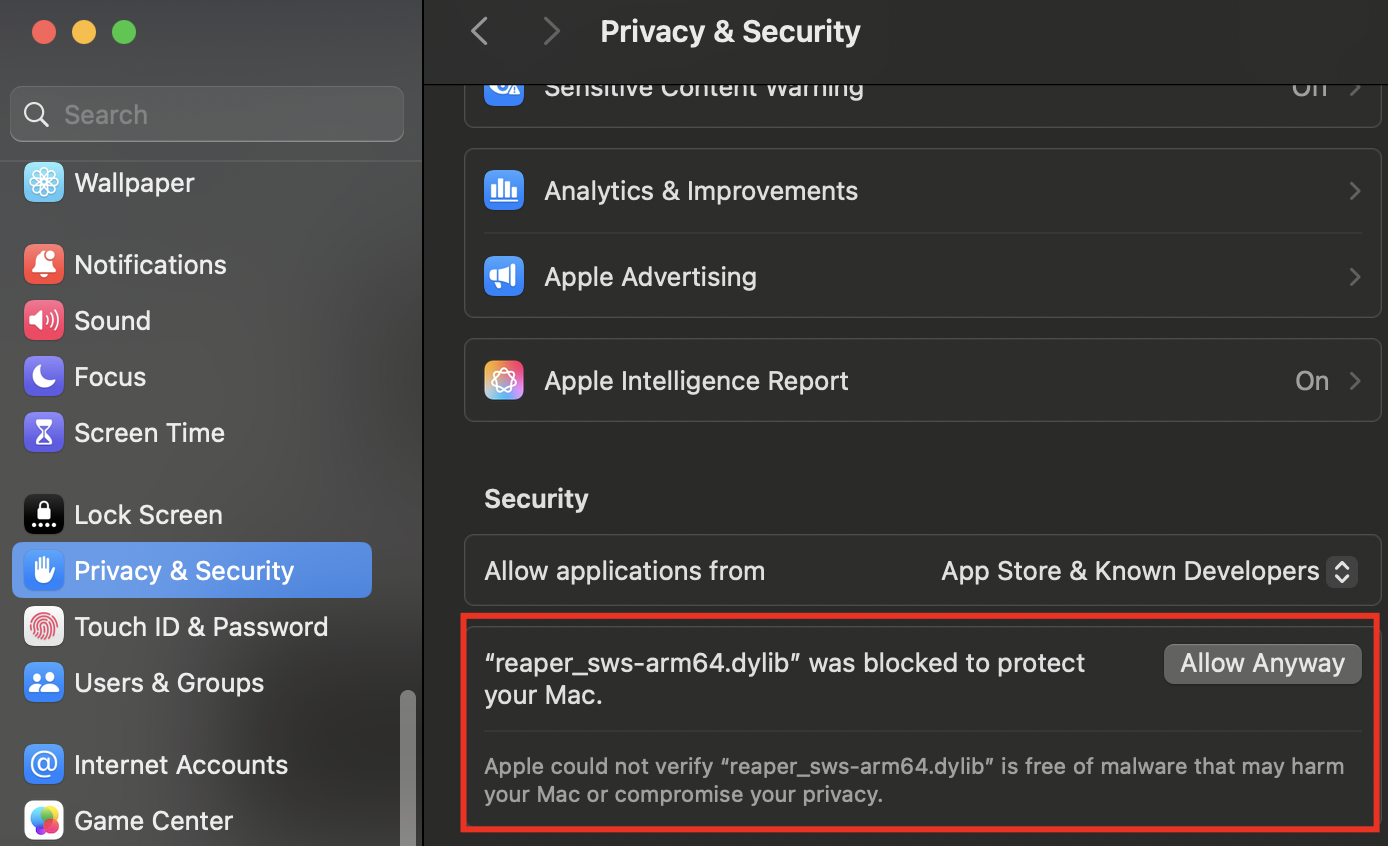
If a security alert pops up and prevents Reaper from opening properly because of the library you just copied, go to macOS Settings → Privacy & Security. Close Reaper, then scroll down until you reach the request to authorize the library anyway. When Reaper is launched again, make sure to Open the SWS library.
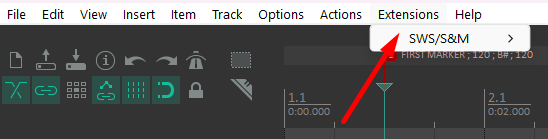
To validate that the SWS/S&M plugin is properly installed, open Extensions in Reaper. The SWS/S&M menu shall be present:

Reaper preferences
Go to Options → Preferences.
-
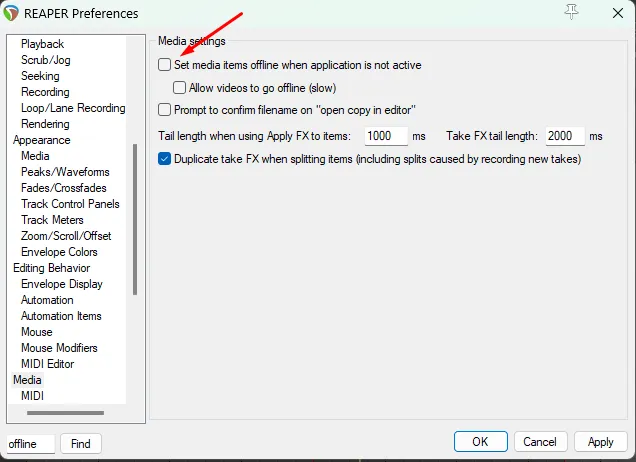
Media section: disable Set media items offline when application is not active.
-
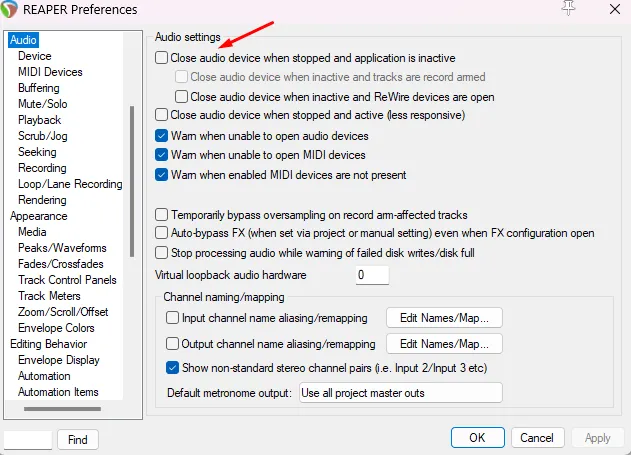
Audio section: disable Close audio device when stopped and application is inactive.
-
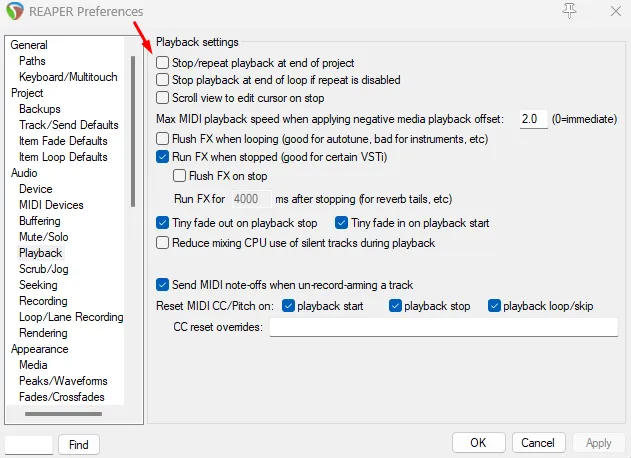
Audio → Playback section: disable Stop/repeat playback at end of project.
LIOBOX² configuration
-
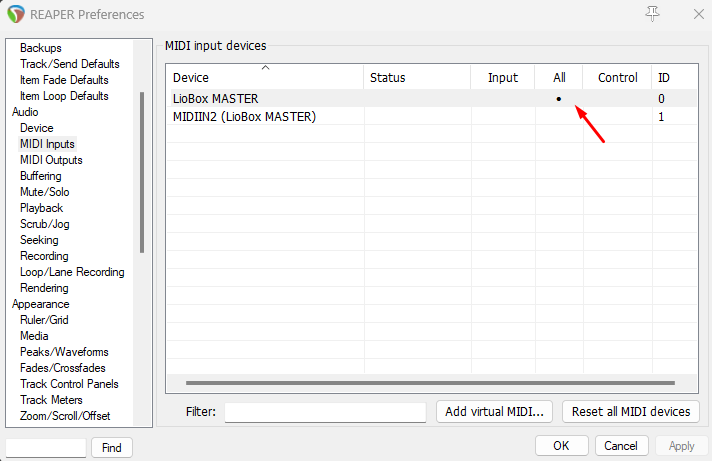
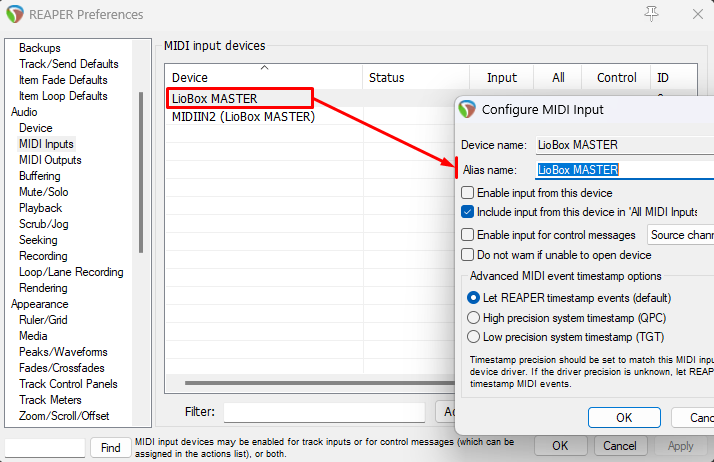
Audio → MIDI Inputs: enable All for the "Liobox ***" device.
-
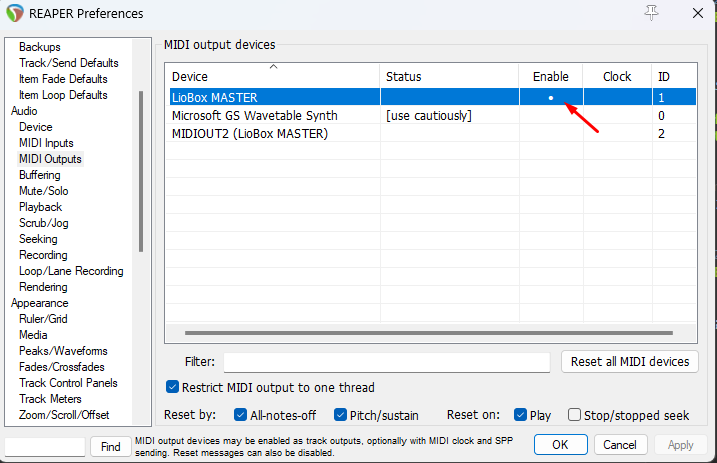
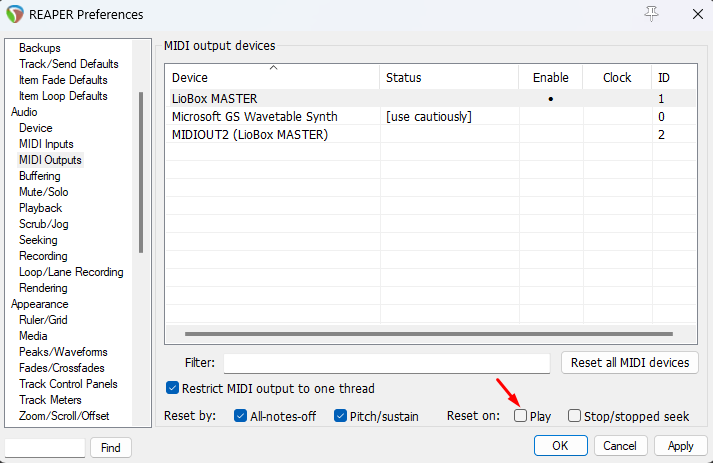
Audio → MIDI Outputs: enable Enable for the "Liobox ***" device.
-
Audio → MIDI Outputs: disable Reset on: Play.
The script searches for the LIOBOX² by checking whether a MIDI device name starts with "LIOBOX". If your LIOBOX² alias name is different (often the case on macOS), you can change it by double-clicking on the device. Ensure one and only one peripheral starts with "LIOBOX".
Script
-
Ensure the SWS/S&M extension for Reaper is installed. It can be checked in the upper ribbon, under Extensions.
-
The script folder can be loaded from anywhere on a local drive. Avoid virtual or synced drives, such as Google Drive folders. We recommend copying the script folder to
<path to Reaper>\InstallData\Scripts.tipIn the GoorooLink Reaper view, browse to the folder containing the scripts so that GoorooLink can detect their version and update them.
-
Show the action list in Actions → Show action list…

-
Load the script
LioboxMaster.luaby clicking New action… → Load ReaScript…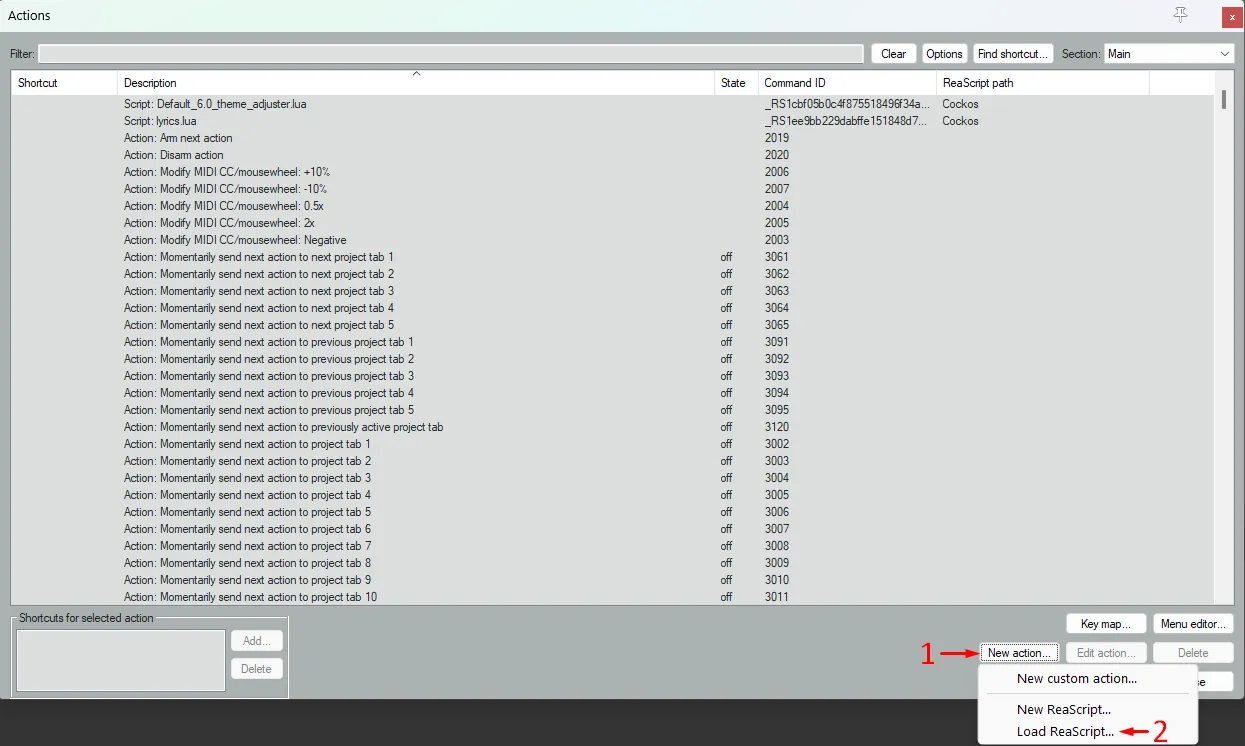
The script should now appear in the script list:

The script can be executed:
- On request (launched directly)
- At project opening
- At Reaper opening
To launch the ReaScript when a project or Reaper opens:
-
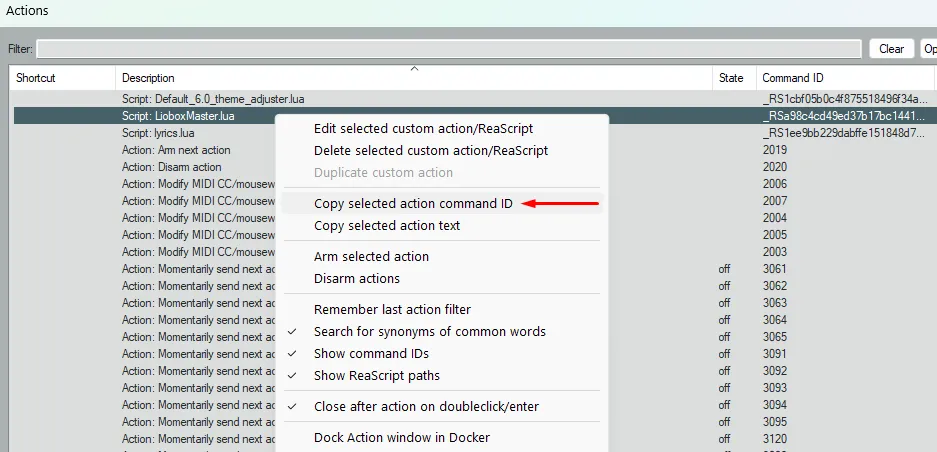
Copy the loaded ReaScript Command ID by right-clicking on the script and selecting Copy selected action command ID.
-
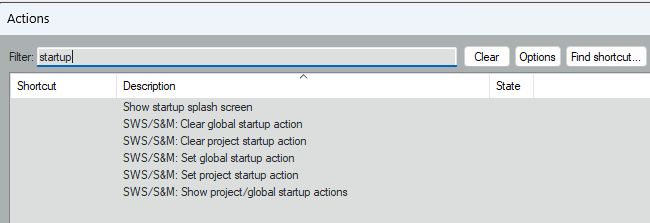
Type "startup" in the filter bar.
-
Depending on whether the script is to launch at project or Reaper startup, select Set project startup action (or Set global startup action) and paste the Command ID.
-
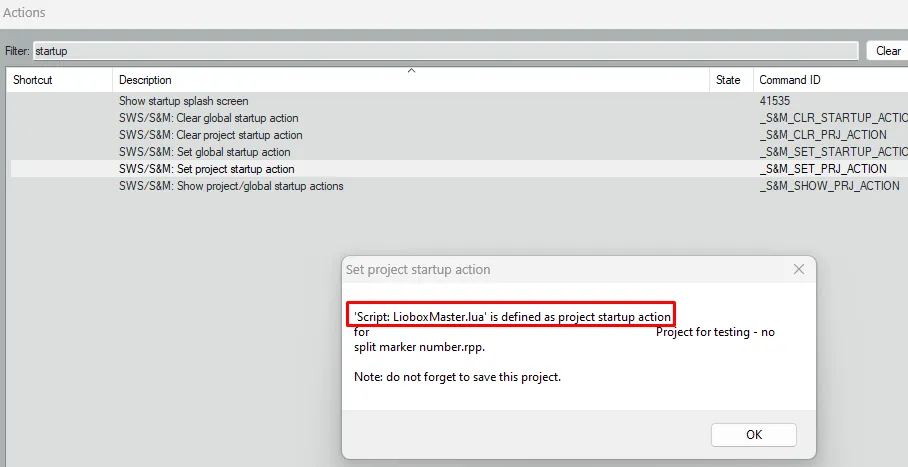
A confirmation popup indicates that the previous step succeeded.
Other
- To remove the automatic loading of the script, use Clear global startup action or Clear project startup action.
- To display the project or global startup action, launch the command Show project/global startup actions.
- To execute the script only once: in the Actions list window, select the script and click Run.
If the LIOBOX² does not appear, ensure it is connected prior to launching Reaper.