Ableton
Setup
Before connecting the LIOBOX² to the computer, the script corresponding to the software version must first be loaded. The script is a small folder allowing data exchange between Ableton and the LIOBOX².
When using two computers in redundancy, the script with the "Spare" extension shall be loaded on the second computer. This enables the LIOBOX² to differentiate between the two computers.
Given the change in supported Python version between Ableton 10, Ableton 11, Ableton 12.0 and Ableton 12.1, load the correct script for your version of Ableton.
The GoorooLink software can install and update the Ableton scripts for you, and shows which scripts are compatible with your LIOBOX² firmware.
Add the Ableton script on macOS
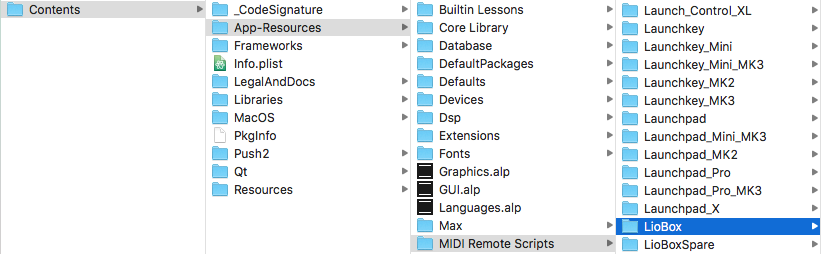
- In the Applications folder, right-click on the Ableton icon and select Show Package Contents.
- Drag the scripts corresponding to the software version into the
MIDI Remote Scriptsfolder.
Add the Ableton script on Windows
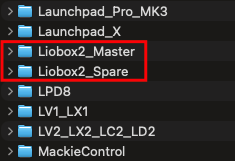
Copy the script folders Liobox2_Master and Liobox2_Spare into the following folder:
<path_to_Ableton>/Ableton/<version>/Resources/MIDI Remote Scripts
Load the script in Ableton
-
Connect the LIOBOX² to the computer and start Ableton.
-
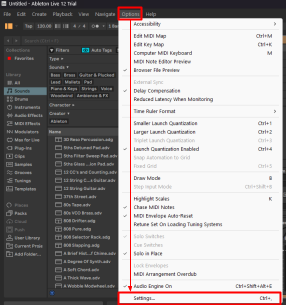
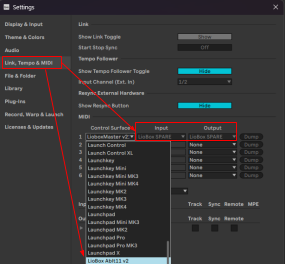
In Options → Settings, select Link, Tempo & MIDI.
-
Load the script in the Control Surface dropdown.
-
Assign the Liobox Port 1 to both Input and Output.

The script works similarly in either Ableton Session or Arrangement mode.
Script advanced features
The Ableton and Bitwig scripts support advanced features that allow:
- Autonext: a marker launching a "next song" command request from the LIOBOX², executed by the LIOBOX².
- Autostop: a marker executing a Stop command.
- Loop
Autonext
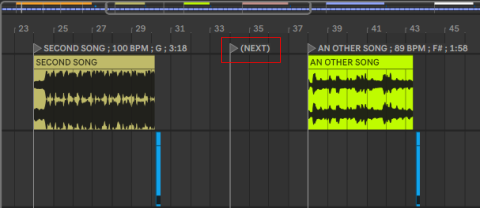
Autonext consists of a "Next" request to launch the LIOBOX² next marker (not the session next marker).
To use this feature, add a (NEXT) marker in your session. The command is executed when the playhead passes over it.
Autostop
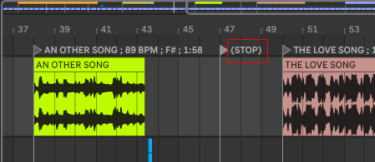
Similarly, the "Stop" marker triggers a STOP request from Ableton/Bitwig (and not from the LIOBOX²).
To use this feature, simply add a (STOP) marker in your session. The command is executed when the playhead passes over it.
Loop
The script's LOOP marker automates the Ableton/Bitwig loop section:
(LOOP): creates a 4-beat infinite loop(LOOP X): creates an infinite loop of X beats(LOOP X // Y): creates a loop of X beats that repeats Y times and then deactivates
Loops can also be created on the fly from the LIOBOX². Refer to Loop on-the-fly.
MIDI OUT: connection with an external MIDI instrument
The LIOBOX² features a second virtual MIDI port through which you can transfer MIDI information (Note, Control Change, Program Change) from Ableton to an external instrument.
- Select port 2 on the LIOBOX².
- Assign it to the MIDI track.

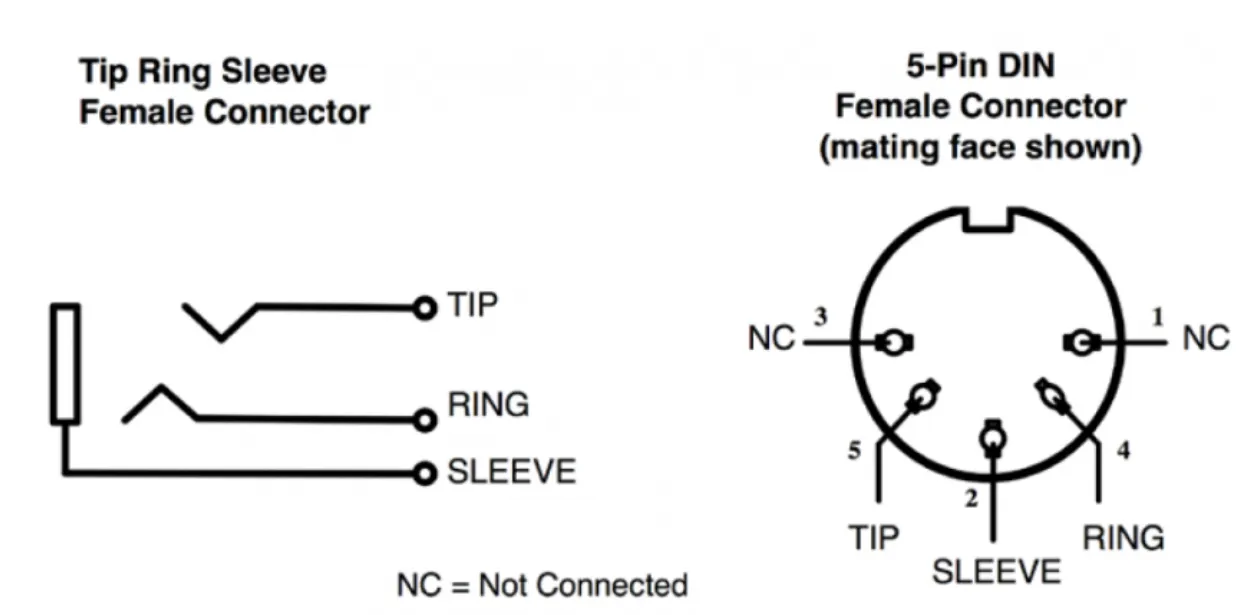
To connect the external instrument, use a 3.5 mm jack cable or a MIDI DIN to 3.5 mm jack adapter, also referred to as a Type A MIDI.