Troubleshooting
Auto-update fails
By default, macOS prevents applications from accessing, modifying or creating files and folders in any location other than the application itself.
When auto-updating, GoorooLink needs access to different folders to copy all the necessary files. The first time it does so, a prompt appears to request your confirmation.
It is still possible to grant the rights from the macOS Settings, in Privacy & Security. Rights shall be granted for:
- App Management (script copy into Ableton)
- Files & Folders (local script, firmware and software files)
| App Management | Files & Folders |
|---|---|
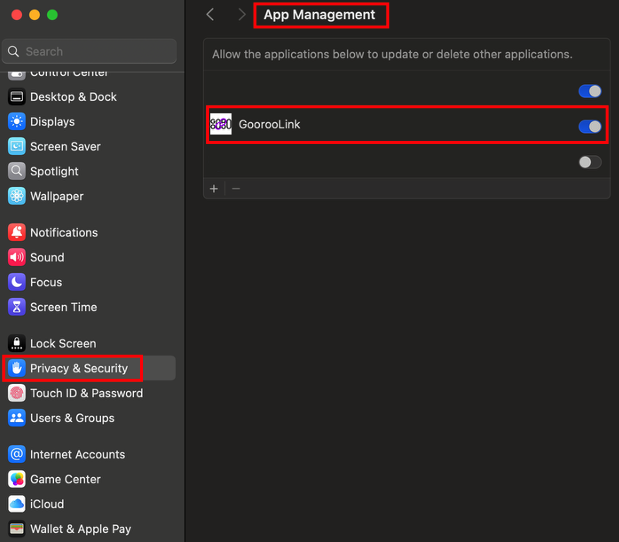 | 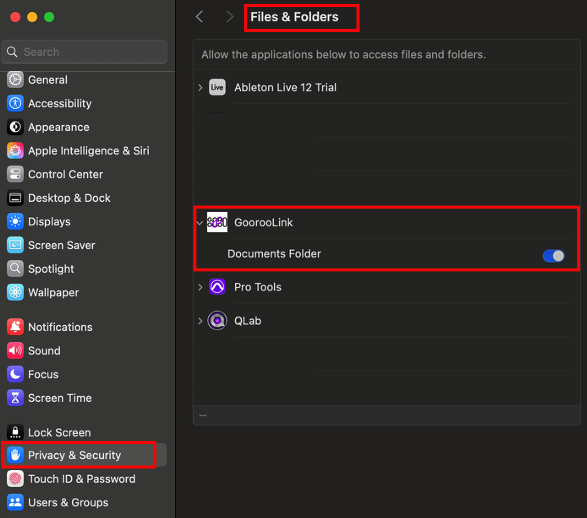 |
If GoorooLink is not visible, add it manually with the + sign at the bottom.
LIOBOX² not detected
macOS can block USB peripherals when a new device is connected. Always click Allow when the LIOBOX² asks to connect.
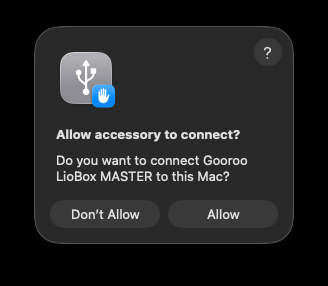
If Don't Allow was clicked, this popup might not show again, which prevents the use of GoorooLink.
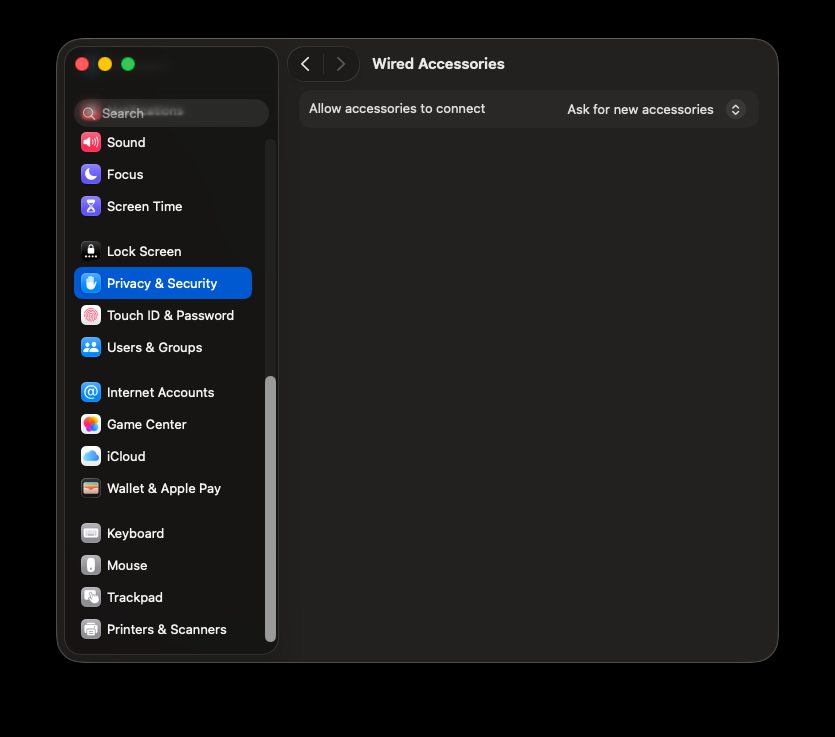
To reset this state, go to System Settings → Privacy & Security → Accessories (at the bottom). Click the Allow accessories to connect list. Selecting the same element works.
Recovery: LIOBOX² disconnected during reflashing
This procedure is only valid for the LIOBOX².
In the event of a power failure during reflashing (USB removed, computer turned off or put to sleep, …), the memory of the LIOBOX² is corrupted, preventing it from booting correctly.
To recover, follow this procedure:
- Remove all USB cables from the LIOBOX².
- Keep the LIOBOX² MENU button pressed (the upper left one).
- Plug the USB cable into the USB Spare (Port B).
- Open GoorooLink and select the DEVICE → DEVICES module. The LIOBOX² appears as a DFU device.
- Proceed with the firmware update as described in Device update.