DEVICE → DEVICES
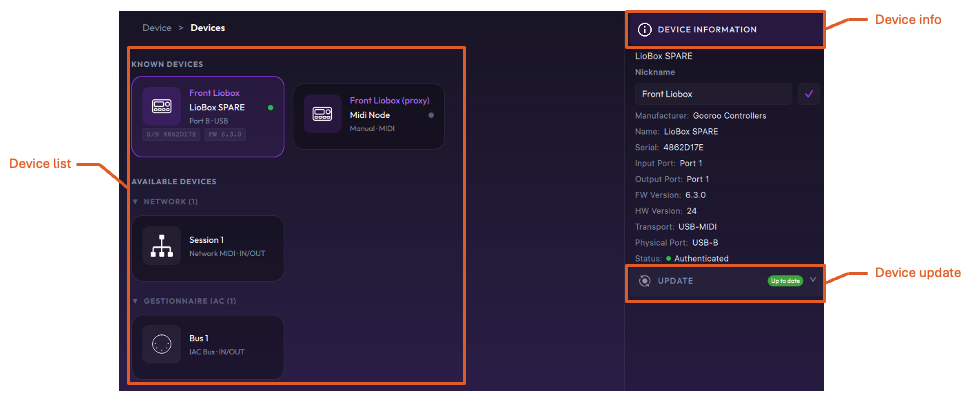
Device list
The device list is divided into two categories:
- Known Devices: devices registered as a Gooroo Controllers device (LIOBOX², …).
- Available Devices: MIDI devices grouped by pair of MIDI IN/OUT that can be used as proxies.
The Known Devices automatically list the connected devices as well as the devices manually assigned.
Device information
Known Devices can be assigned a nickname so they become easier to recognize. This nickname does not rename the actual device and only lives inside GoorooLink.
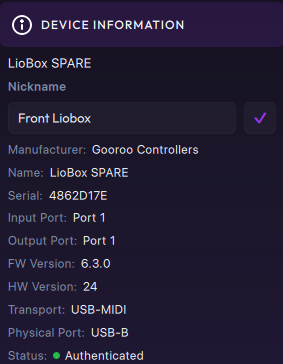
- Nickname: user-friendly name to easily differentiate one LIOBOX² from another (Front stage / Back stage for example). This name is internal to GoorooLink and is not used by macOS or DAWs.
Device information (read-only):
- Manufacturer
- Name (as per macOS USB-MIDI information)
- Input / output ports: macOS MIDI ports/name. If the MIDI device name is changed in the macOS MIDI settings, it appears here.
- Serial number
- FW version: firmware version
- HW version: hardware version
- Transport: type of peripheral used (USB, RTP, …)
- Physical port: LIOBOX² USB port from which MIDI traffic is emitted
- Status: see below
Device status
The device status depicts the state the device is in.
| Status | Description | Gooroo Controllers device | Proxy |
|---|---|---|---|
| Available (Available Devices) | Device ready to be assigned | N/A | |
| Disconnected (Known Devices) | The proxy is not plugged into the computer, hence not visible | N/A | Gray |
| Connected | The proxy is visible. GoorooLink attempts to authenticate to the Gooroo Controllers device periodically | N/A | Orange |
| Authentication failed | Authentication cannot be completed; the device cannot be used in the GoorooLink apps | Orange | Orange |
| Authenticated | The device can be used in the Bridge or LIOBOX apps | Green | Green |
| Update available | A newer firmware is available. Ensure the Gooroo Controllers device is plugged directly into the computer to make the Update section visible | Red | Red |
Device update
A device can be updated directly through the Device Properties panel. Only USB-connected Gooroo Controllers devices can be updated.
Manual vs Auto
| Mode | Description |
|---|---|
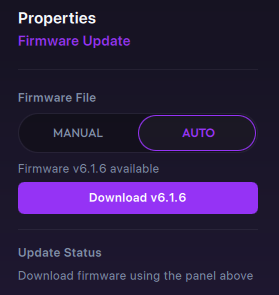
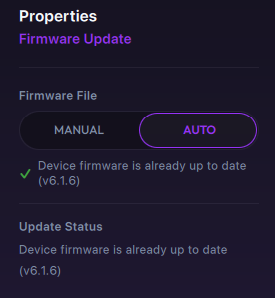
| Auto | Automatically proposes the latest compatible firmware version. Before the LIOBOX² can be updated, the firmware file needs to be downloaded from the server. This file is then stored and can be reused later. Once available, simply start the firmware update. |
| Manual (advanced users only) | Browse for the firmware file (.lbf) manually before going through the update process. |
| Auto: update available | Auto: up to date | Manual |
|---|---|---|
 |  | 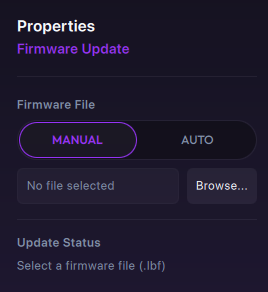 |
Update process
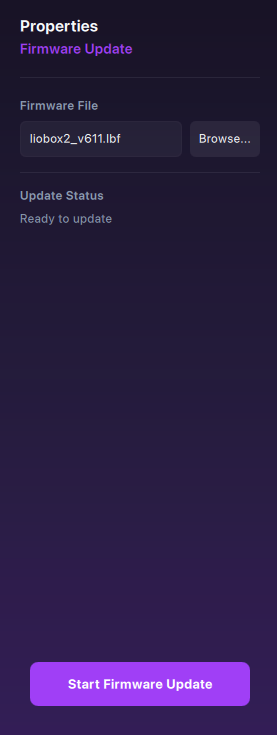
-
Firmware file: Manual: load the firmware file manually. Auto: download the proposed firmware file.
-
Update status: information about the status and progress of the update.
-
Ready to update: the firmware file is loaded and a compatible device is selected.
-
Update progressing normally: the firmware update is progressing. This process takes between 10 s and 20 s for a LIOBOX².
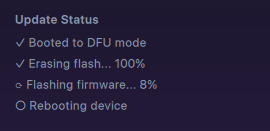 danger
DO NOT DISCONNECT THIS LIOBOX² DURING THIS PROCESS. If it happens, follow the recovery procedure.
-
Update failed: the update process failed. Try again and/or contact Gooroo Controllers support for troubleshooting.

-
-
Start Firmware Update: proceeds with the device firmware update. Requires a valid firmware file and a valid selected device.
Device assignment
The device assignment capability allows the usage of a proxy MIDI device to reach a Gooroo Controllers device.
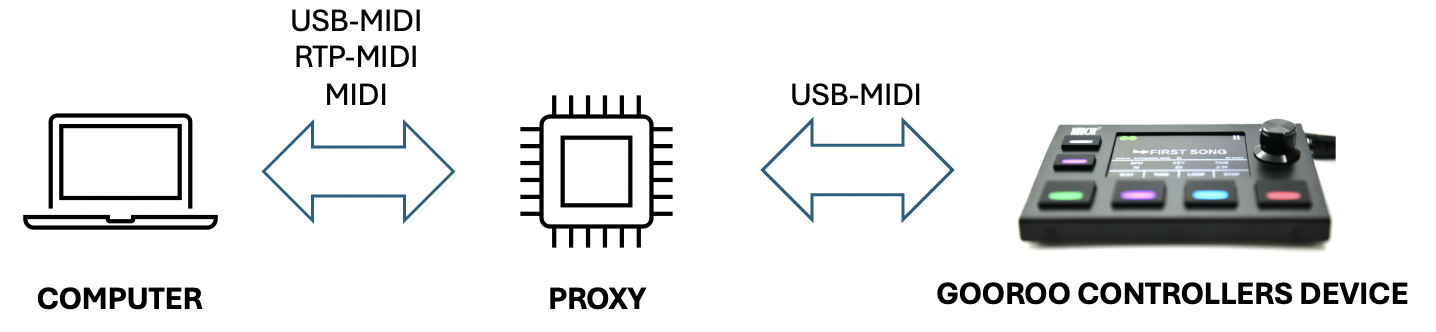
As the Gooroo Controllers device cannot be seen from the laptop directly, it is your task to let GoorooLink know which proxy is being used by manually assigning it to a device.
To do so, select a peripheral in the Available Devices list and click Assign as Liobox. The proxy is now listed in the Known Devices list.
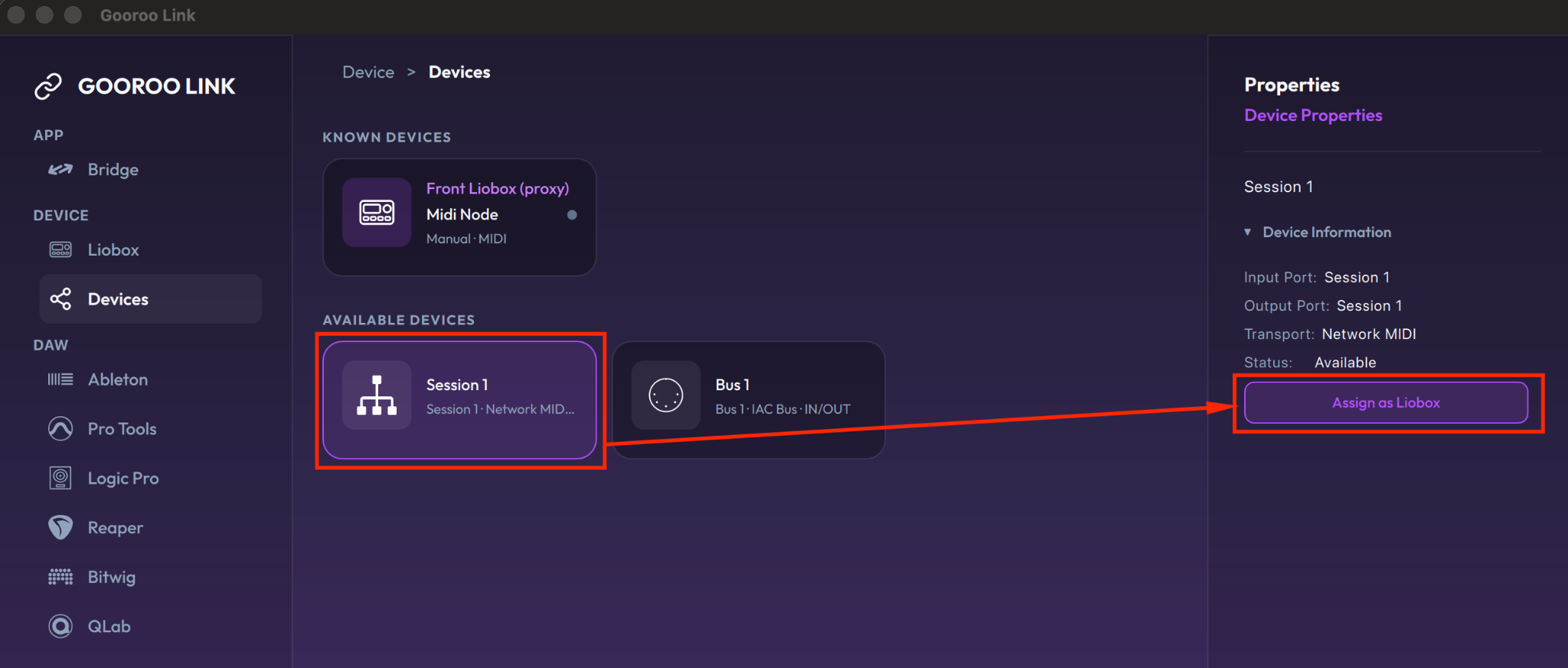
Once assigned, GoorooLink saves this assignment and always displays the device (even if disconnected) under the Known Devices list.
When a device is in the Known Devices list and Connected, GoorooLink starts scanning this port to communicate with the assigned device.