Getting started
This chapter covers everything that does not depend on your DAW: the LIOBOX² hardware, how to connect it, how to install GoorooLink, and the versions this manual covers. Then follow the guide for your DAW.
LIOBOX² description
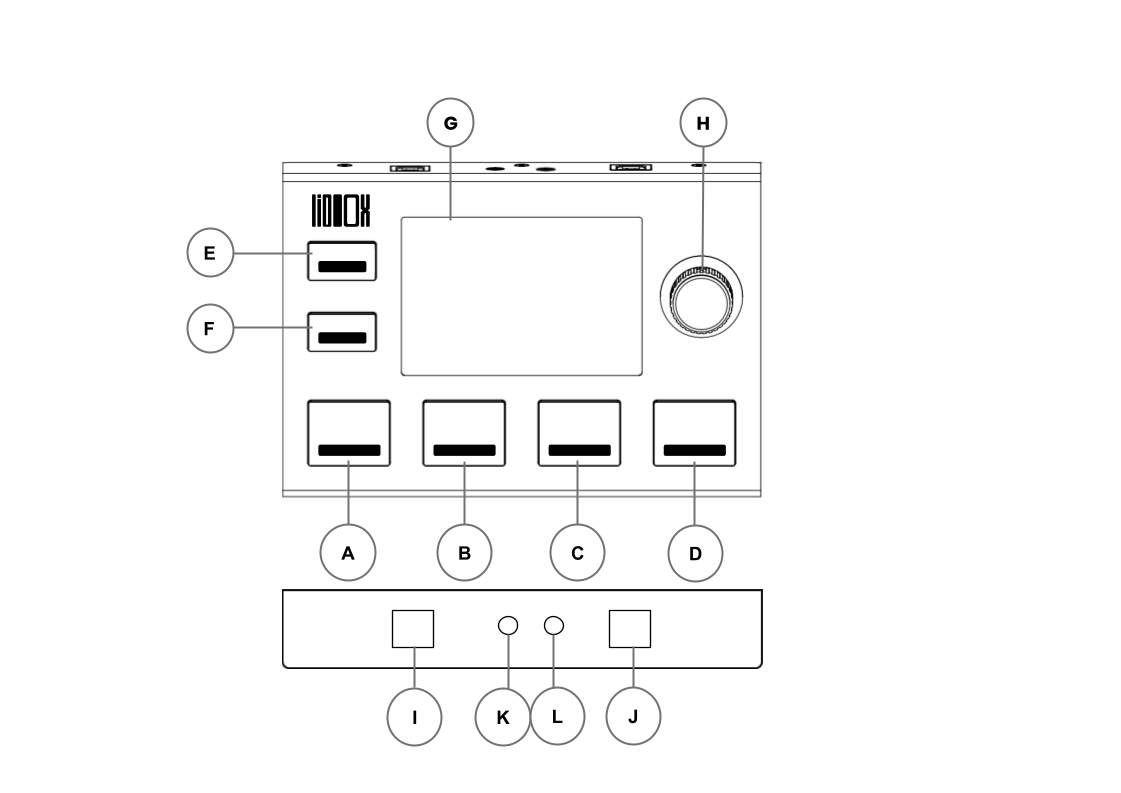
| Label | Element | Function |
|---|---|---|
| A, B, C, D | Pads A B C D | Pads that can be assigned to software functions or MIDI messages |
| E | Pad E: MENU / BACK | Opens the menu and returns to the main screen |
| F | Pad F: BANK CHANGE / BACK | Changes the pad bank and goes back in submenus |
| G | Display | 3.5-inch color display |
| H | Clickable knob | Navigates the menu, selects and launches the next or previous song |
| I | USB A | Connects to the Master computer |
| J | USB B | Connects to the Spare computer |
| K | MIDI OUT | 3.5 mm jack MIDI output |
| L | MIDI IN | 3.5 mm jack MIDI input |
Pads (A to F)
The LIOBOX² has six RGB backlit silicone pads with click buttons. Each pad has a predefined function. Pads A to D can be reassigned, as explained in Pad config.
Predefined functions
- A: PLAY: launches the selected song. By default, once a song is launched, the LIOBOX² automatically selects the next song in the list.
- B: RWD: a long press launches fast rewind. A single press selects the previous song without launching it. A double press restarts the current song.
- C: FWD: a long press launches fast forward. A single press selects the next song without starting it.
- D: PAUSE: pauses playback. A second press resumes playback. During playback, a quick double press stops playback and returns to the first beat (1.1.1).
- E: MENU: opens the LIOBOX² menu (settings and setlists). In the menus, pressing MENU returns to the home screen.
- F: BACK / BANK CHANGE: in the menus, goes back to the previous menu. On the MAIN screen, changes the pad bank.
Clickable knob (H)
The clickable knob (a notched rotary encoder) moves through the menu options. Clicking it confirms the selection.
On the MAIN screen, turn the knob to select the next song to play, then click it to launch the song.
USB ports (I, J)
The LIOBOX² has two USB 2 MIDI ports, named USB A and USB B (I and J respectively in the drawing above):
- USB A is recognized as "Liobox MASTER"
- USB B is recognized as "Liobox SPARE"
The LIOBOX² can also be used with a single computer, connected to the USB A port (as with the LIOBOX version 1).
Connecting two computers, one on each USB port, enables redundancy.
Only the USB B port allows a firmware update with GoorooLink. See Device update.
Jack ports (K, L)
The LIOBOX² has two MIDI 3.5 mm jack ports:
- MIDI IN port: lets an external instrument control LIOBOX² functions
- MIDI OUT port: lets the LIOBOX² control an external instrument
Display (G)
The LIOBOX² 3.5" screen shows customizable information, so you do not need to look at the DAW.
In ADVANCED mode, the MAIN screen shows:
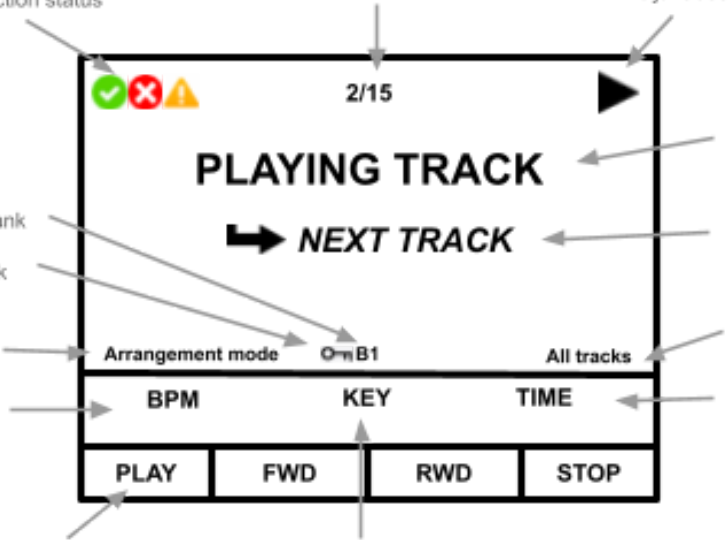
The amount of information shown on the MAIN screen depends on the screen setting. See Screen preference for all the options.
The MENU screens let you fully customize the LIOBOX² and create and navigate setlists.
Connect the LIOBOX²
- Plug the LIOBOX² into the computer with the cable provided, on the USB A port (Master computer). A second computer can be connected to the USB B port for redundancy.
- On macOS, always click Allow when the computer asks whether the LIOBOX² can connect. If you clicked Don't Allow, see LIOBOX² not detected.
- Set up the DAW as described in your DAW guide, then check the connection status on the LIOBOX² screen.
Connection status
The LIOBOX² communicates with your DAW through a script (Ableton, Bitwig, Reaper) or through the BRIDGE app of GoorooLink (Pro Tools, Logic Pro, Cubase, QLab).
When two computers are used in redundancy, load the Spare script on the second computer.
Once the script is loaded in Ableton, Bitwig or Reaper, the LIOBOX² exchanges MIDI information with the Main computer. The same applies to Pro Tools, Logic Pro, Cubase and QLab while GoorooLink is running.
The LIOBOX² screen shows the state of the connection:

| Script loaded, communication active | DAW not started, script not loaded |
|---|---|
| Green check mark | Red cross |
With redundancy, the status of each connection is shown (Main first, then Spare):
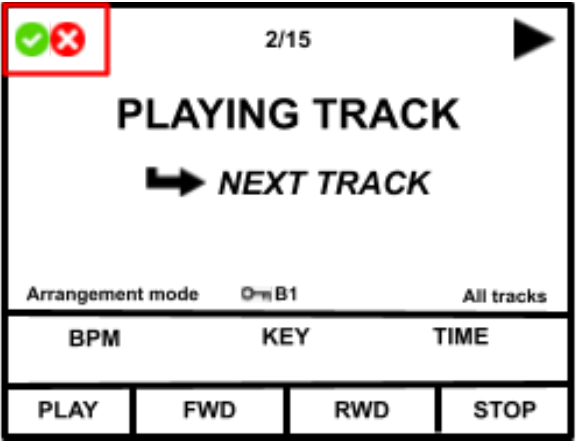
Redundancy
The LIOBOX² can be connected to two computers running in sync: a Main and a Spare. If the Main computer fails, the Spare computer takes over, so neither the show nor its control is interrupted.
Audio redundancy also requires a redundant sound card.
Loading the Spare script on the second computer tells the LIOBOX² that this computer is the backup.
The LIOBOX² sends information to the Spare computer but does not display its feedback, to avoid conflicts with the Main computer.
When the Spare computer is connected, the LIOBOX² compares the song lists of the Main and Spare computers to make sure the sessions are identical.
See also the connection status indicators and, for Pro Tools, Redundancy in Pro Tools.
Install GoorooLink
GoorooLink is the companion software of the LIOBOX². It is required to use the LIOBOX² with Pro Tools, Logic Pro, Cubase and QLab, and optional (but recommended) with the other DAWs: it configures the LIOBOX² from your Mac and keeps the firmware and scripts up to date. See GoorooLink for a description of the application.
System requirements
GoorooLink is compatible with:
- macOS on Intel processors
- macOS on Apple M processors
Supported macOS versions:
- Big Sur (11)
- Monterey (12)
- Ventura (13)
- Sonoma (14)
- Sequoia (15)
- Tahoe (26)
An internet connection is required to perform auto-updates.
Install
GoorooLink is distributed as a macOS installer (.dmg):
- Open the
.dmgfile. - Drag the GoorooLink shortcut to the Applications folder.
GoorooLink needs system permissions. Make sure they are granted.
Cross compatibility
To keep the LIOBOX² firmware, the scripts and GoorooLink compatible with each other, GoorooLink checks the Gooroo Controllers servers. If it detects a mismatch, it warns you and proposes the updates that fix it. See Auto-updates.
Always keep your LIOBOX², scripts and GoorooLink up to date to benefit from the latest features and bug fixes.
Covered versions
This manual describes the features of the following firmware, software and script versions.
Keep your LIOBOX², scripts and GoorooLink up to date to benefit from the latest features, bug fixes and stability improvements.
| Element | Version |
|---|---|
| LIOBOX² firmware | v6.1.2 and above |
| Ableton script | v3.1.7 |
| Reaper script | v1.1.0 |
| Bitwig extension | v1.0.0 |
| GoorooLink software | v1.1.0 and above |