Reaper
- Integration: native, through the LIOBOX² Reaper script (
LioboxMaster.lua). GoorooLink is not required. - Features: song list, setlists, transport, loop, redundancy.
- Needed: the SWS/S&M extension and the Reaper script (see Covered versions).
Setup
These instructions are written for Reaper v7.27. Reaper is updated frequently, so they may differ slightly in other versions.
Prerequisite: SWS/S&M extension
Download and install the SWS/S&M extension for REAPER.
Windows: simply run the installer.
macOS:
-
Download: select ARM64 if using Apple M processors or X64 if using Intel processors.
-
Launch the installer.
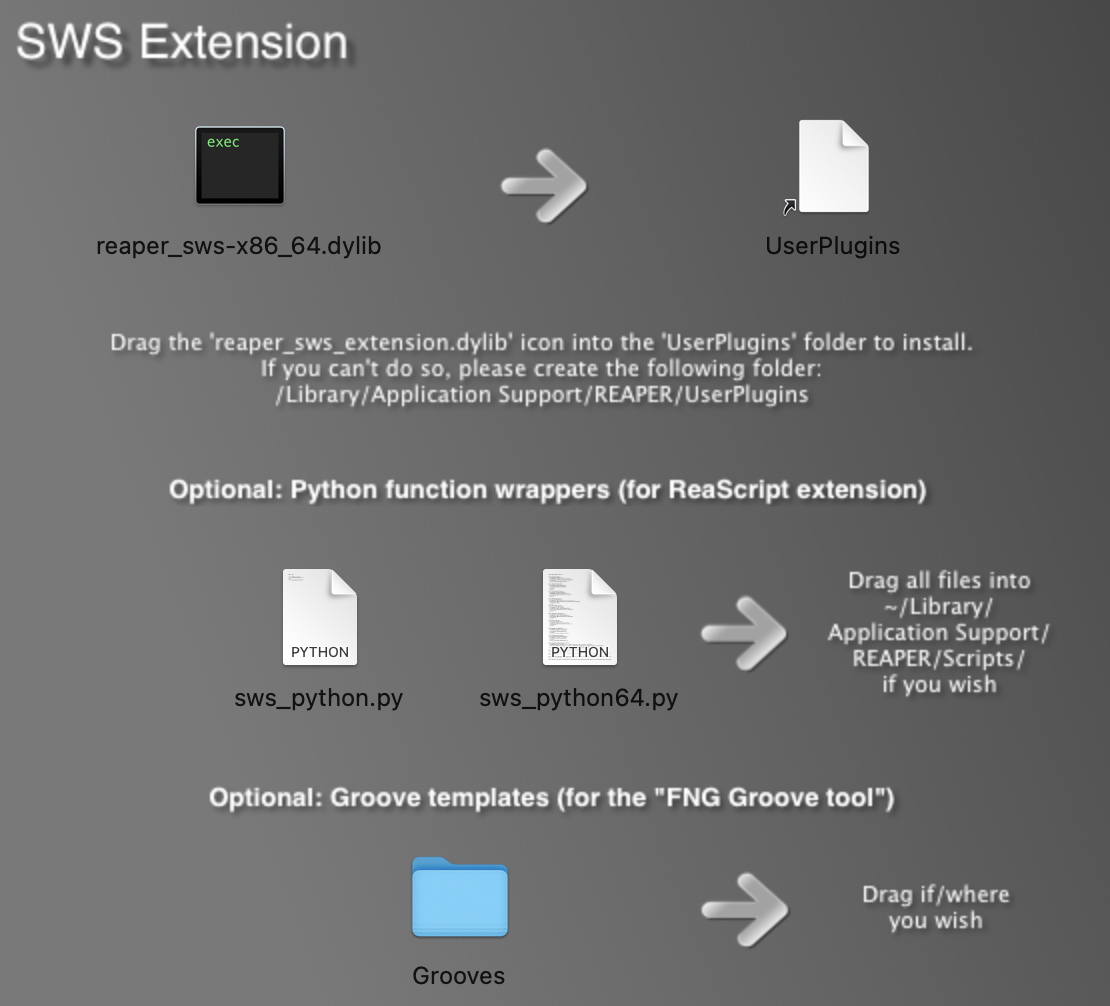
-
Drag and drop
reaper_sws-PROCESSOR.dylibinto the/Library/Application Support/REAPER/UserPluginsfolder. If the folder does not exist, create it manually. The other files are not required for the LIOBOX² to run.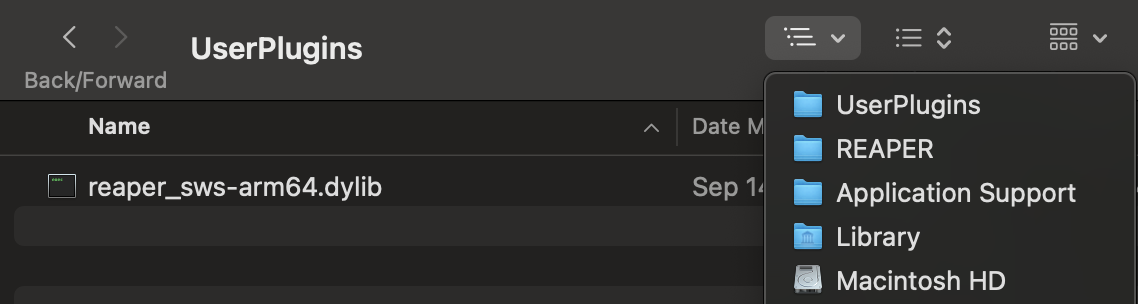
-
Launch REAPER.
If a security alert pops up and prevents Reaper from opening properly because of the library you just copied, go to macOS Settings → Privacy & Security. Close Reaper, then scroll down until you reach the request to authorize the library anyway. When Reaper is launched again, make sure to Open the SWS library.
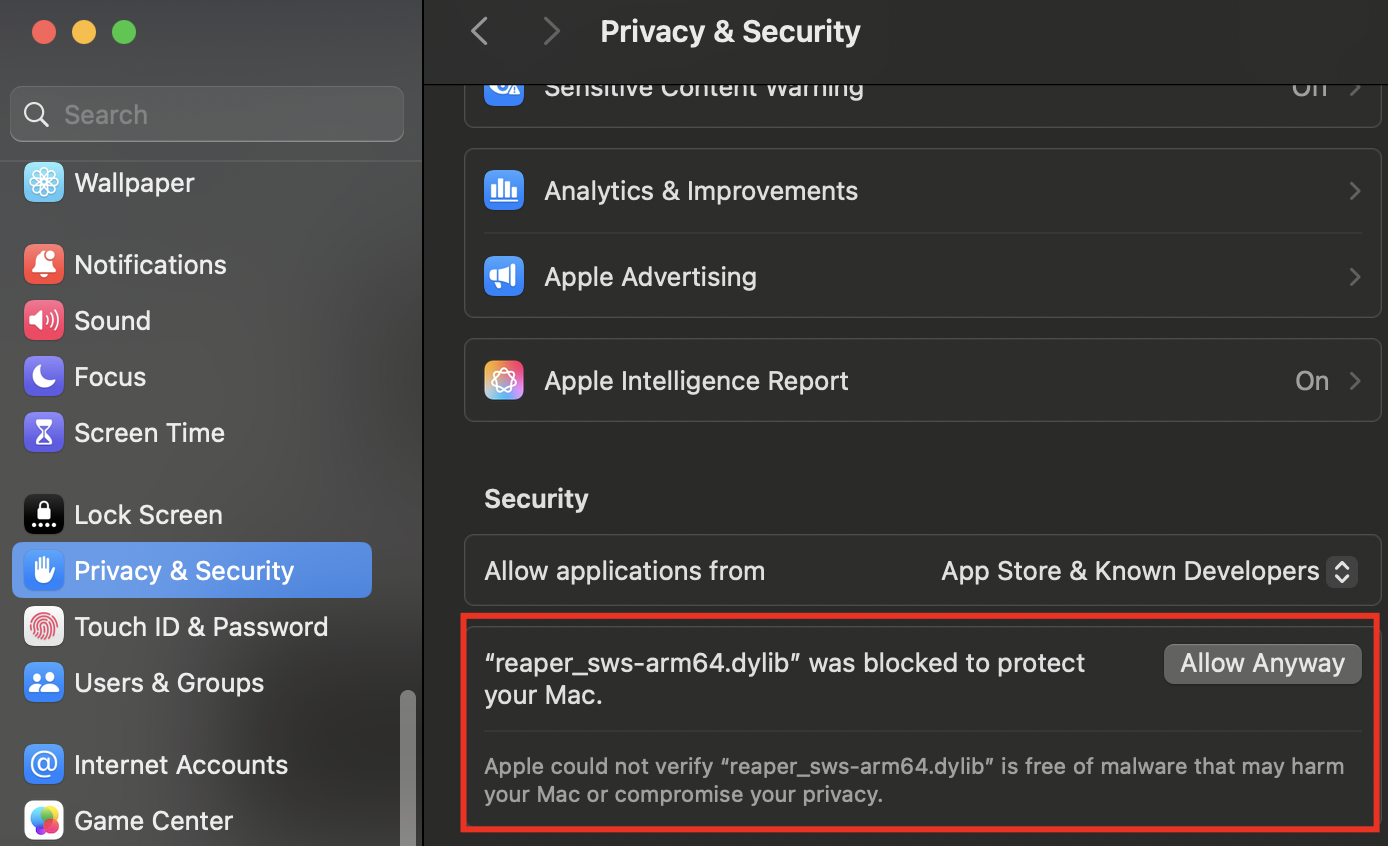
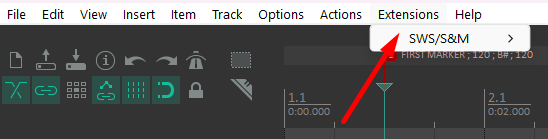
To check that SWS/S&M is installed, open Extensions in Reaper: the SWS/S&M menu should be present:

Reaper preferences
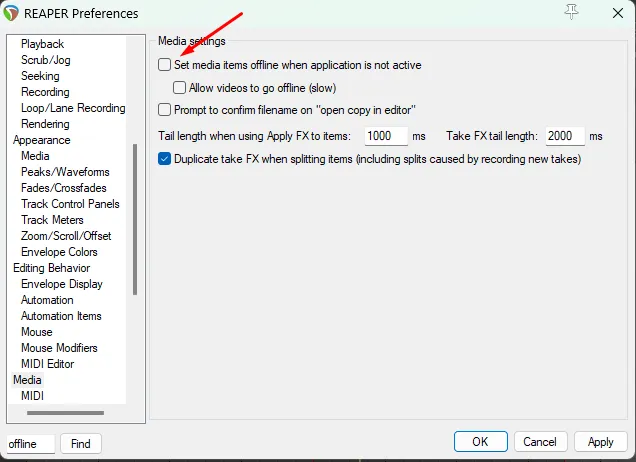
Go to Options → Preferences.
-
Media section: disable Set media items offline when application is not active.
-
Audio section: disable Close audio device when stopped and application is inactive.
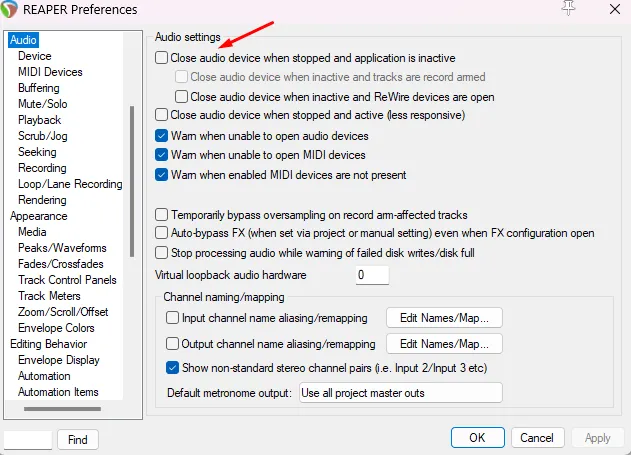
-
Audio → Playback section: disable Stop/repeat playback at end of project.
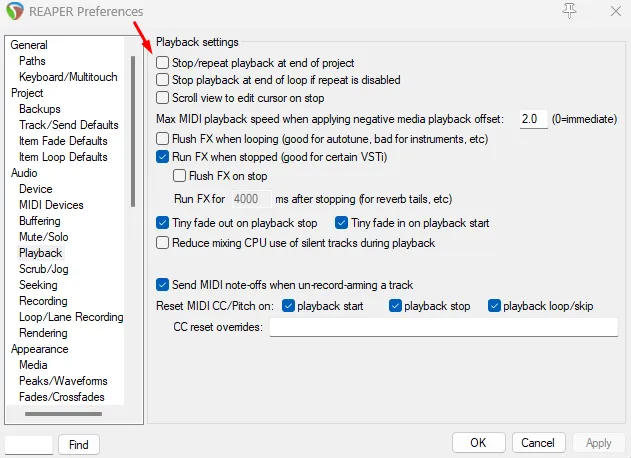
LIOBOX² configuration
-
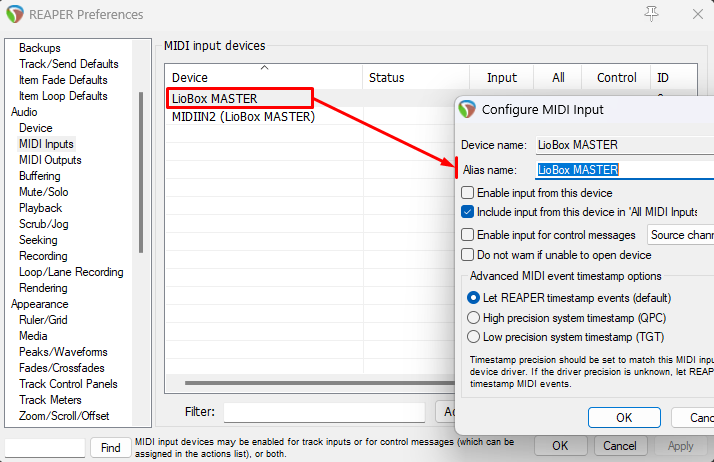
Audio → MIDI Inputs: enable All for the "Liobox ***" device.
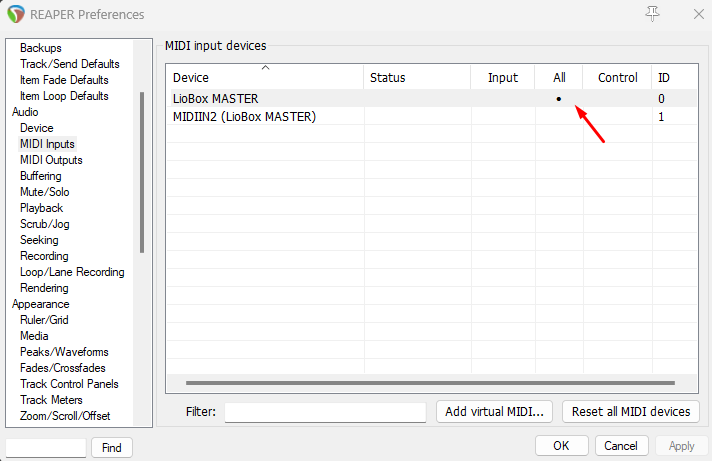
-
Audio → MIDI Outputs: enable Enable for the "Liobox ***" device.
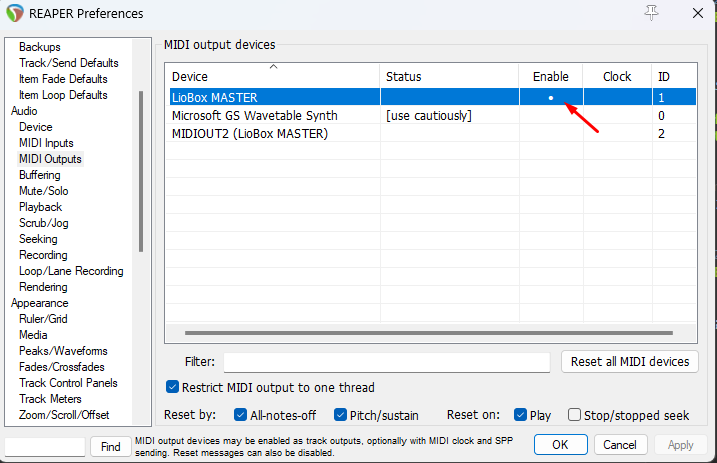
-
Audio → MIDI Outputs: disable Reset on: Play.
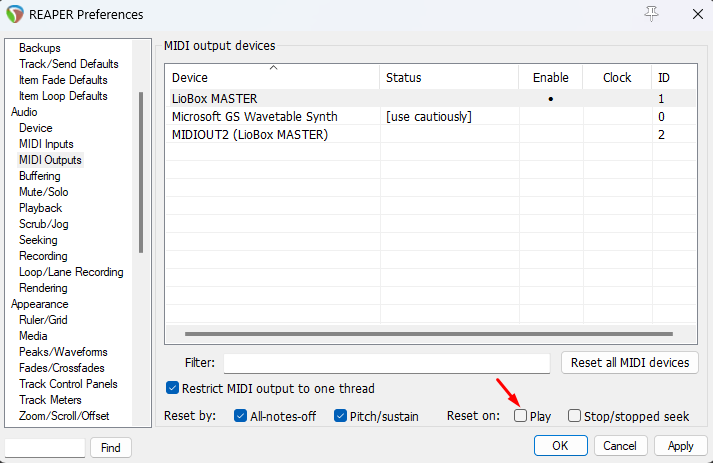
The script searches for the LIOBOX² by checking whether a MIDI device name starts with "LIOBOX". If the alias of your LIOBOX² is different (often the case on macOS), double-click the device to change it. Make sure exactly one device name starts with "LIOBOX".
Script
-
Check that the SWS/S&M extension is installed: it appears under Extensions in the upper ribbon.
-
The script folder can be anywhere on a local drive, but avoid virtual or synced drives such as Google Drive folders. We recommend copying it to
<path to Reaper>\InstallData\Scripts.tipIn the GoorooLink Reaper view, browse to the folder containing the scripts so that GoorooLink can detect their version and update them.
-
Show the action list in Actions → Show action list…

-
Load the script
LioboxMaster.luaby clicking New action… → Load ReaScript…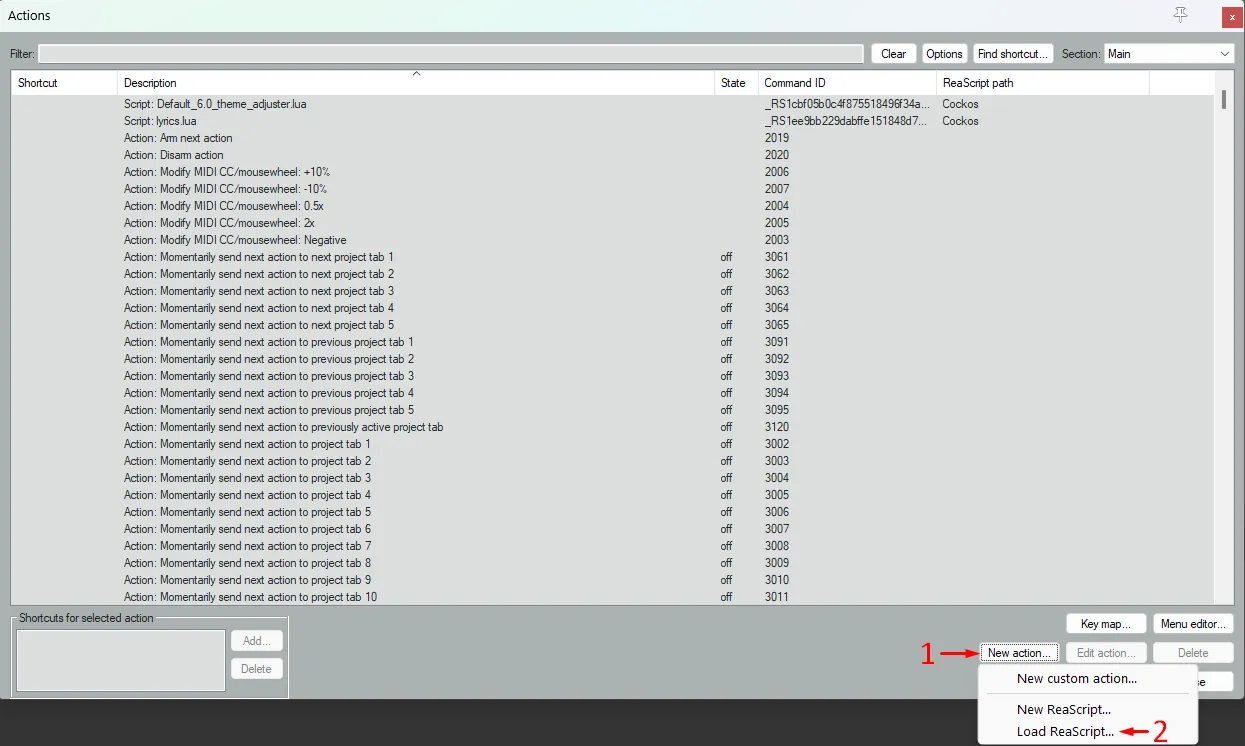
The script should now appear in the script list:

The script can run:
- On request (launched manually)
- At project opening
- At Reaper opening
To run the ReaScript automatically when a project or Reaper opens:
-
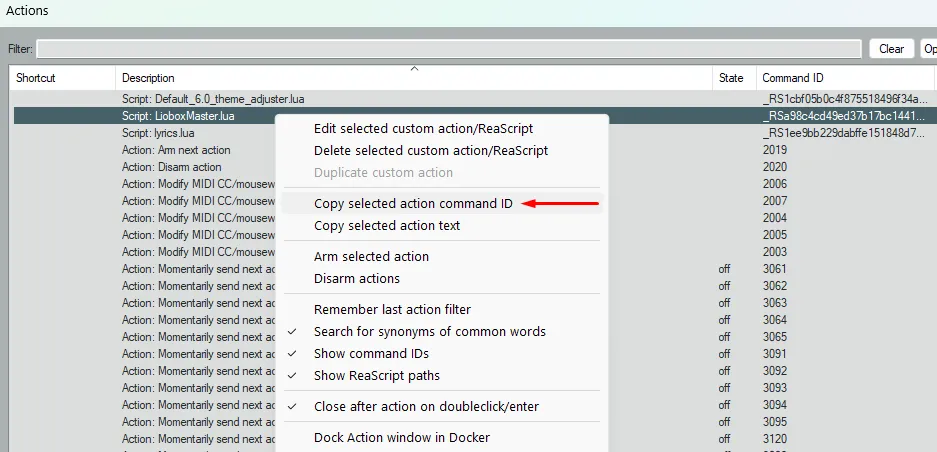
Copy the loaded ReaScript Command ID by right-clicking on the script and selecting Copy selected action command ID.
-
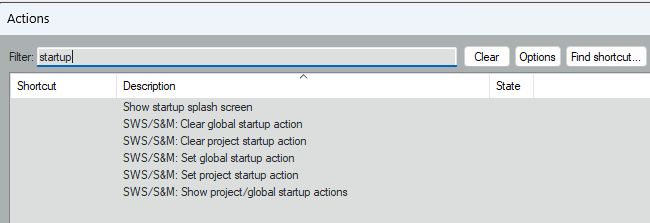
Type "startup" in the filter bar.
-
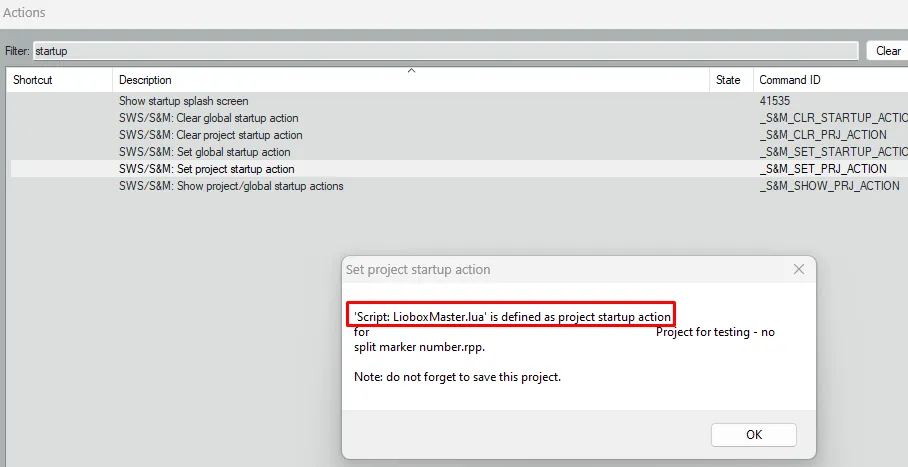
Select Set project startup action (to run the script when the project opens) or Set global startup action (when Reaper opens), and paste the Command ID.
-
A confirmation popup tells you it worked.
Other
- To stop the script from loading automatically, use Clear global startup action or Clear project startup action.
- To see the current startup actions, run Show project/global startup actions.
- To run the script only once, select it in the Actions list and click Run.
If the LIOBOX² does not appear, make sure it is connected before you launch Reaper.
Loop on-the-fly
The LIOBOX² pads can control the Reaper loop:
- Loop in: sets the loop start marker. The marker is set to the previous bar/beat.
- Loop out: sets the loop end marker. The marker is set to the next bar/beat.
- Loop in/out: alternates between the two. If loop in was set, the next press sends loop out, and the other way around.
- Loop on/off: turns the loop on or off.
- Loop create X: creates a loop of a predefined length of X beats (X from 1 to 127).
Loop out always turns the loop on once it is created. When the playhead reaches the loop end marker, it jumps back to the loop start marker, and keeps looping until you turn the loop off.
Assign these features to pads in Pad config. By default, "Loop In" snaps to the closest previous bar. You can change this to beat in the advanced settings.
LIOBOX² modes
Select the REAPER mode in MENU → MODE.
All tracks mode
Switch to ALL TRACKS mode from the Mode menu.
| Ableton | Reaper |
|---|---|
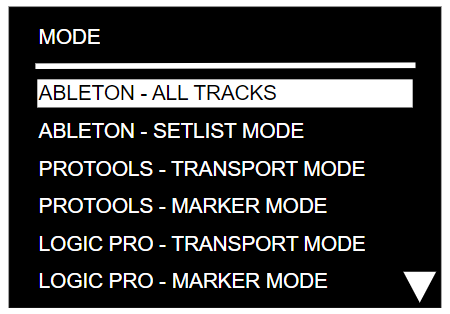 | 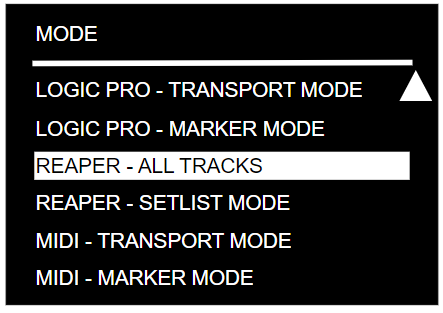 |
ALL TRACKS mode gives access to all the songs of the DAW session, in session order, so you can move to and launch any song of your set.
If Error on duplicate track is enabled, the LIOBOX² checks the song names and warns you when two songs (scenes/locators) have the same name, so you can correct them.
Setlist mode
SETLIST mode lets you choose and reorder the songs: the LIOBOX² only displays the songs of the show's setlist, in the order you want. All this without modifying the DAW session or touching the computer.
Setlists can be renamed and are saved in the internal memory of the LIOBOX².
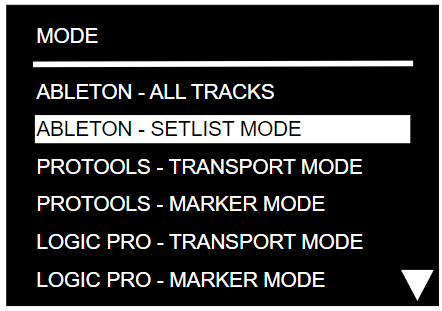
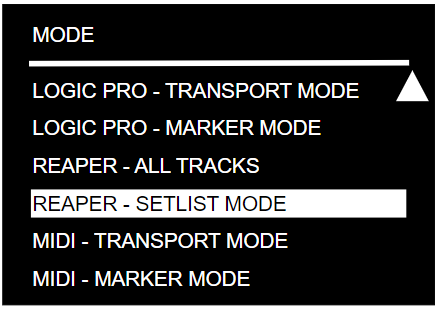
Switch to Setlist mode from the Mode menu:
| Ableton | Reaper |
|---|---|
 |  |
Setlist creation
To create a setlist, select + ADD [MODE] SETLIST in MENU → SETLIST. First select the mode (Reaper) in MENU → MODE.
The first letter of the mode (A/B for Ableton/Bitwig, R for Reaper, …) is added at the start of the setlist name, to show which mode it belongs to.
As songs are added, the total duration is displayed at the top of the window, next to the setlist name.

Add songs to the setlist
Once the setlist is created, you can add songs. The song list is loaded directly from the active Reaper project.
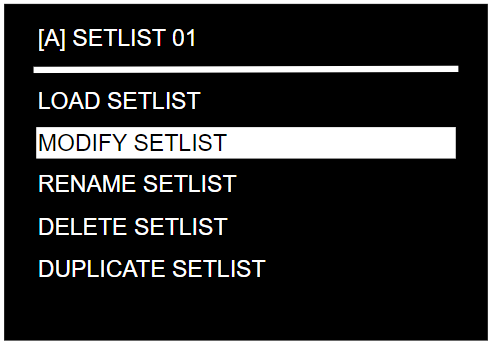
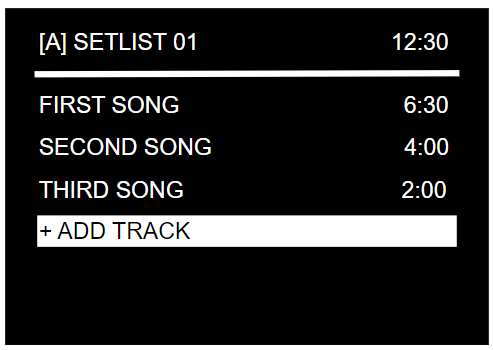
To add a song, open the setlist, select MODIFY, then + ADD TRACK. The list of loaded songs appears: click a song to add it. The same song can be added several times.
The duration of each song is shown next to its name (it comes from the song title, see the naming convention).
| Setlist menu | Setlist / MODIFY menu | ADD TRACK menu | Setlist / MODIFY menu |
|---|---|---|---|
 |  | 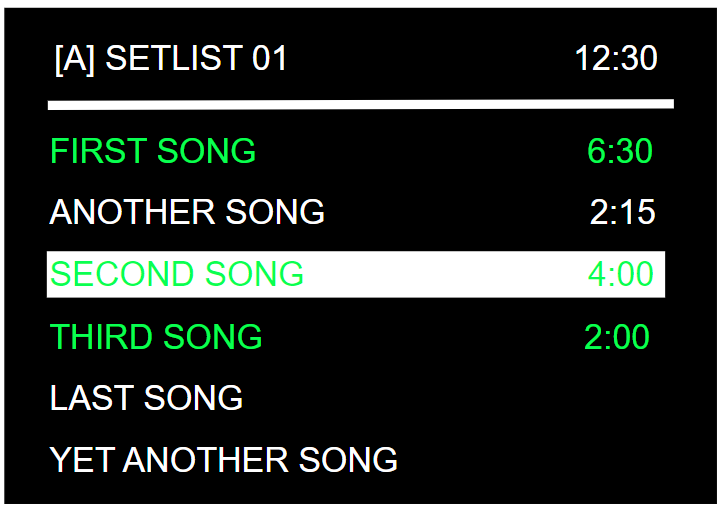 |  |
Songs already in the setlist appear in green.
Manage and load setlists
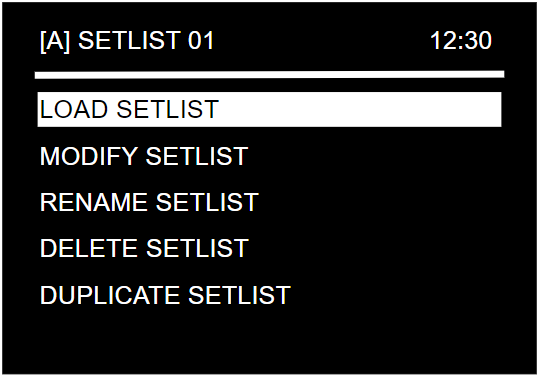
A setlist can be renamed (12 characters maximum), duplicated and modified at any time. See Setlists.
If a song in the loaded setlist is not present in the DAW session, it is displayed in red on the Play screen. Up to 9 setlists can be created.
To use a setlist, select SETLIST mode in the MODE menu and load the setlist.
The setlist name appears in red on the Play screen if the loaded setlist's mode is different from the active mode.
Track position in session/setlist
The position of the current song in the session or setlist is constantly displayed at the top of the screen.
Track naming convention
The LIOBOX² can display the BPM, key and duration of each song. Enter them in the song name using this naming convention:
song_name ; bpm ; key ; duration
- Write the duration as
mm:ss. - If you do not need a value, leave the field empty and omit the
;. - To keep a song from being sent to the LIOBOX², start its name with
(). Example:()song number 1.

Compatible characters
The following characters are compatible with the LIOBOX². Any other character is filtered out.
- Upper case:
AtoZ - Numbers:
0to9 - Parentheses:
( ) - Square brackets:
[ ] - Hashtag:
# - Ampersand:
& - Plus:
+ - Slash:
/ - Space
Names that are not transmitted
A name starting with one of the following is not transmitted to the LIOBOX²:
()[](LOOP_**>>>+LOOP
The following marker names are also filtered out from the marker list received by the LIOBOX²:
AUTOSTOP(STOP)(NEXT)STOPSONG ENDPLAYNEXTSTOPBOTEASY LOOPERNEXTCUE
Pad features
Pads can be reassigned from MENU → PAD CONFIG (see Pad config). In Reaper mode, the following features are available:
- NONE
- PLAY LIOBOX MARKER
- PLAY (TRANSPORT)
- PAUSE
- STOP
- PREV LIOBOX MARKER
- PREV MARKER (TRANSPORT)
- FAST-REWIND
- RESTART MARKER
- NEXT LIOBOX MARKER
- NEXT MARKER (TRANSPORT)
- FAST-FORWARD
- LOOP IN/OUT, LOOP IN, LOOP OUT, LOOP ON/OFF, LOOP CREATE X
- CUSTOM MIDI
Notes:
- Play or Play (Transport) corresponds to the DAW Play.
- Play LIOBOX Marker plays the next song.
- Fast-Rewind and Fast-Forward can only be assigned to the Long press pad event.
- Next or Prev Marker (Transport) corresponds to the DAW Next event (next/previous in the project).
- Next or Prev LIOBOX Marker selects the next or previous marker from the setlist.
- The loop features are described in Loop on-the-fly.
Redundancy
When two computers are used in redundancy, load the Spare script on the second computer. The LIOBOX² compares the song lists of the Main and Spare computers to ensure that the sessions are identical. See Redundancy.
Troubleshooting
- If the LIOBOX² does not appear in Reaper, make sure it is connected before you launch Reaper, and that exactly one MIDI device name starts with "LIOBOX" (see the alias warning above).
- For the green check icon and song names, see Troubleshooting.