QLab
- Integration: through the BRIDGE app of GoorooLink (macOS), which transforms MIDI to the OSC protocol.
- Features: cue display (latest Go'ed, selected, remaining time), transport and cue commands from the pads.
- Needed: GoorooLink running and OSC access enabled in QLab.
GoorooLink BRIDGE
QLab cannot be scripted like Ableton, Bitwig or Reaper, so the LIOBOX² works with it through the BRIDGE app of GoorooLink. The BRIDGE relays the commands sent by the LIOBOX² and gives the LIOBOX² the QLab information (marker list, playhead position, …).
GoorooLink runs on macOS only. If it is not installed yet, see Install GoorooLink.
-
Launch GoorooLink and open APP → BRIDGE.
-
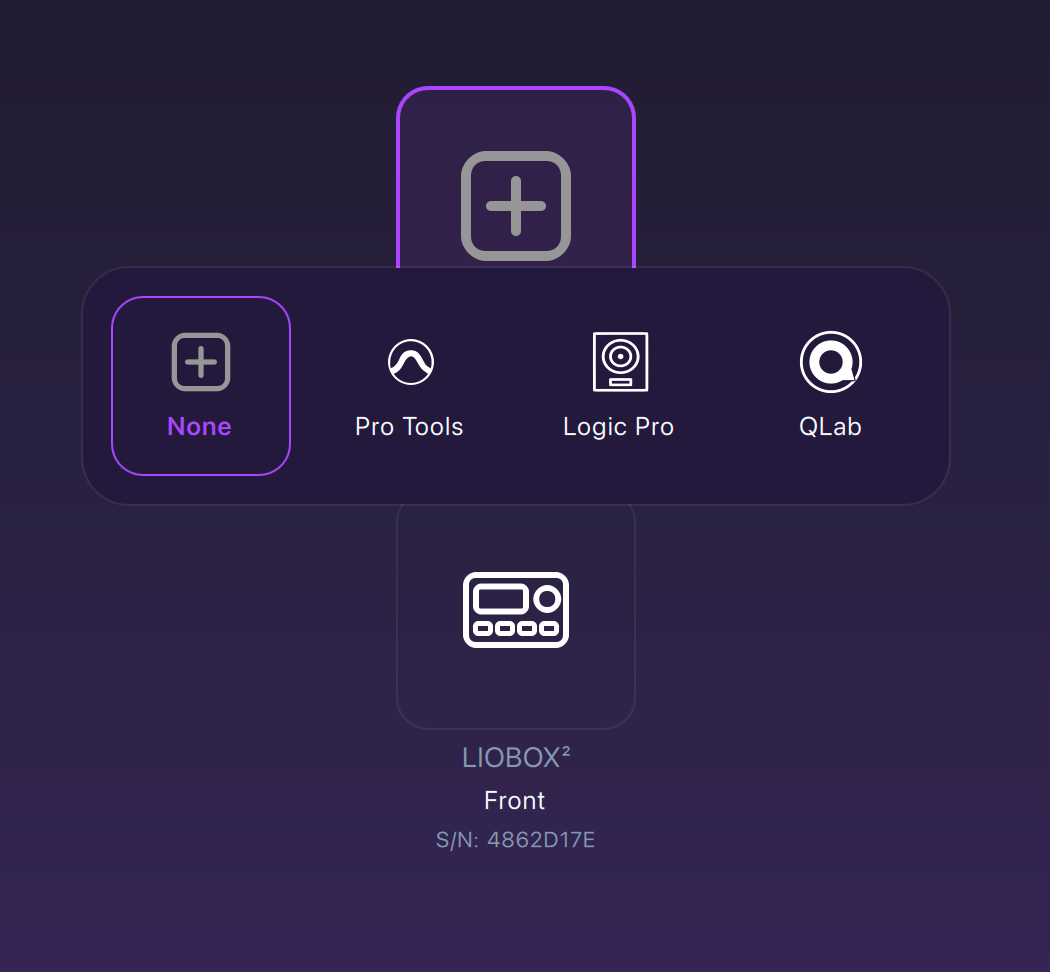
In the DAW selection, click the DAW tile and choose QLab.
-
In the LIOBOX selection, choose your connected LIOBOX².
-
Check the BRIDGE state next to the APP → BRIDGE menu item: it turns green once both the DAW and the LIOBOX² are detected.
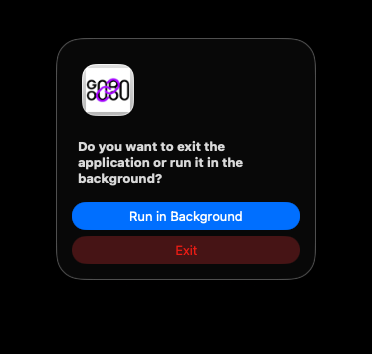
GoorooLink must be running for the BRIDGE to work. It can run in the foreground or in the background, but it must not be exited.
To run it in the background, quit the application: a dialog asks whether it should run in the background or exit.
QLab configuration
The LIOBOX² communicates with QLab through GoorooLink, which converts MIDI to the OSC protocol.
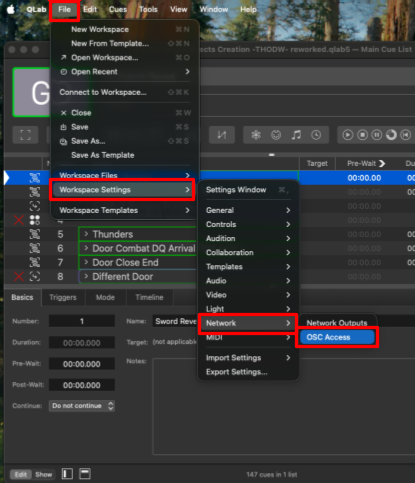
To allow this, enable OSC access in the QLab settings:
File → Workspace Settings → Network → OSC Access
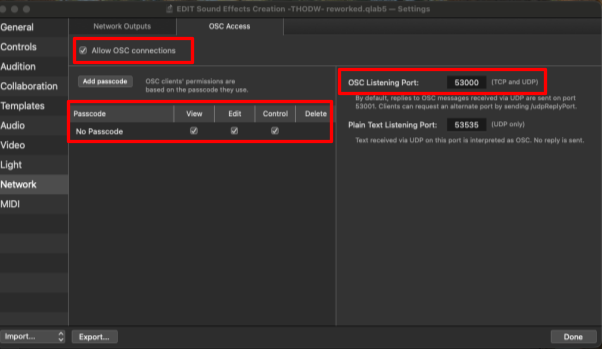
Allow OSC connections, use the "No Passcode" access with View, Edit and Control rights, and keep the default OSC listening port (53000).
QLab mode
QLab works very differently from the other DAWs. In QLab mode, the LIOBOX² does not store tracks or setlists: it mainly displays information, and it can also trigger specific commands.
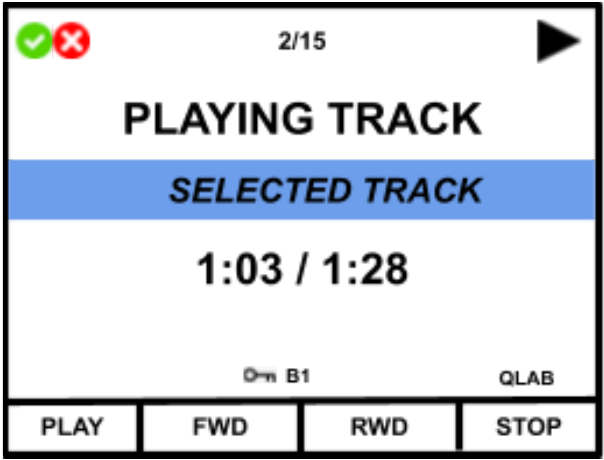
Three pieces of information can be displayed:
- Latest Go'ed cue
- Selected cue: the cue that will be Go'ed if sending the Play command
- Remaining / cue duration
QLab properties in GoorooLink
Use the BRIDGE QLab properties to choose the information shown on the LIOBOX².
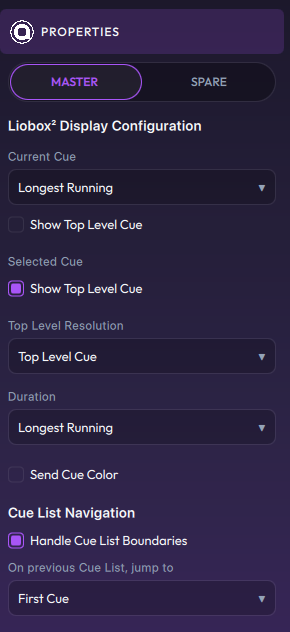
- Master / Spare: select to assign the connected LIOBOX² as Master or as a Spare. Prefer using the Spare assignment when actively using redundancy.
Selection of the information displayed on the LIOBOX² (LIOBOX² Display Configuration):
-
Current Cue: when several cues are running, choose which one is shown on the LIOBOX²:
- Longest running
- Latest fired
-
Selected Cue
-
Duration: shown as remaining/total duration. The same choice applies as for Current Cue:
- Longest running
- Latest fired
-
Show Top Level Cue: QLab cues can have multiple levels. When Show Top Level Cue is selected, if the Current or Selected Cue is in a sub-level, the name of its top-level cue is shown instead.

-
Top Level Resolution: select between Top Level Cue and Cue List (when available).
-
Send Cue Color: allows displaying the cue colors on the LIOBOX² display.
-
Cue List Navigation: changes the effect of Next and Previous when used in a project using cue lists (Handle Cue List Boundaries and On previous Cue List, jump to).
Pad features
Pads can be reassigned from MENU → PAD CONFIG (see Pad config). In QLab mode, the following features are available:
- NONE
- PLAY CUE
- PAUSE
- PREV CUE
- NEXT CUE
- PANIC
- CUSTOM MIDI
Redundancy
In the BRIDGE QLab properties of the second computer, assign the LIOBOX² as Spare. See Redundancy.
Troubleshooting
For the green check icon, see Troubleshooting. Make sure OSC access is allowed in QLab and GoorooLink is running.