Pro Tools
- Integration: through the BRIDGE app of GoorooLink (macOS), using MMC and MTC.
- Features: song list from markers, setlists, transport, redundancy (Pro Tools Studio or higher).
- Needed: GoorooLink running, and the Pro Tools configuration below.
GoorooLink BRIDGE
Pro Tools cannot be scripted like Ableton, Bitwig or Reaper, so the LIOBOX² works with it through the BRIDGE app of GoorooLink. The BRIDGE relays the commands sent by the LIOBOX² and gives the LIOBOX² the Pro Tools information (marker list, playhead position, …).
GoorooLink runs on macOS only. If it is not installed yet, see Install GoorooLink.
-
Launch GoorooLink and open APP → BRIDGE.
-
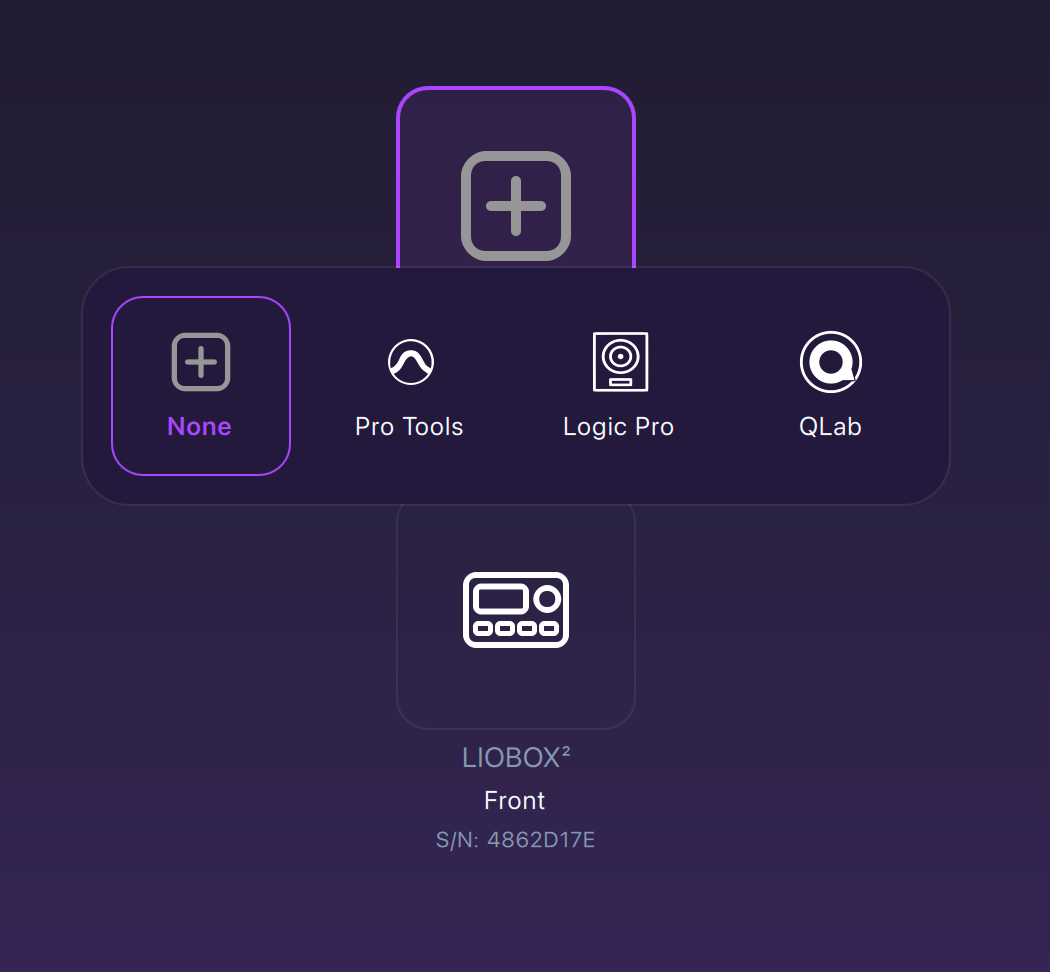
In the DAW selection, click the DAW tile and choose Pro Tools.
-
In the LIOBOX selection, choose your connected LIOBOX².
-
Check the BRIDGE state next to the APP → BRIDGE menu item: it turns green once both the DAW and the LIOBOX² are detected.
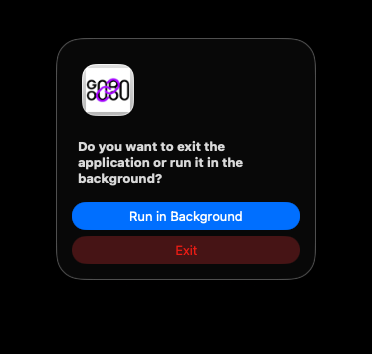
GoorooLink must be running for the BRIDGE to work. It can run in the foreground or in the background, but it must not be exited.
To run it in the background, quit the application: a dialog asks whether it should run in the background or exit.
Pro Tools configuration
This section covers the Pro Tools configuration. Make sure Pro Tools is selected in the BRIDGE of GoorooLink.
-
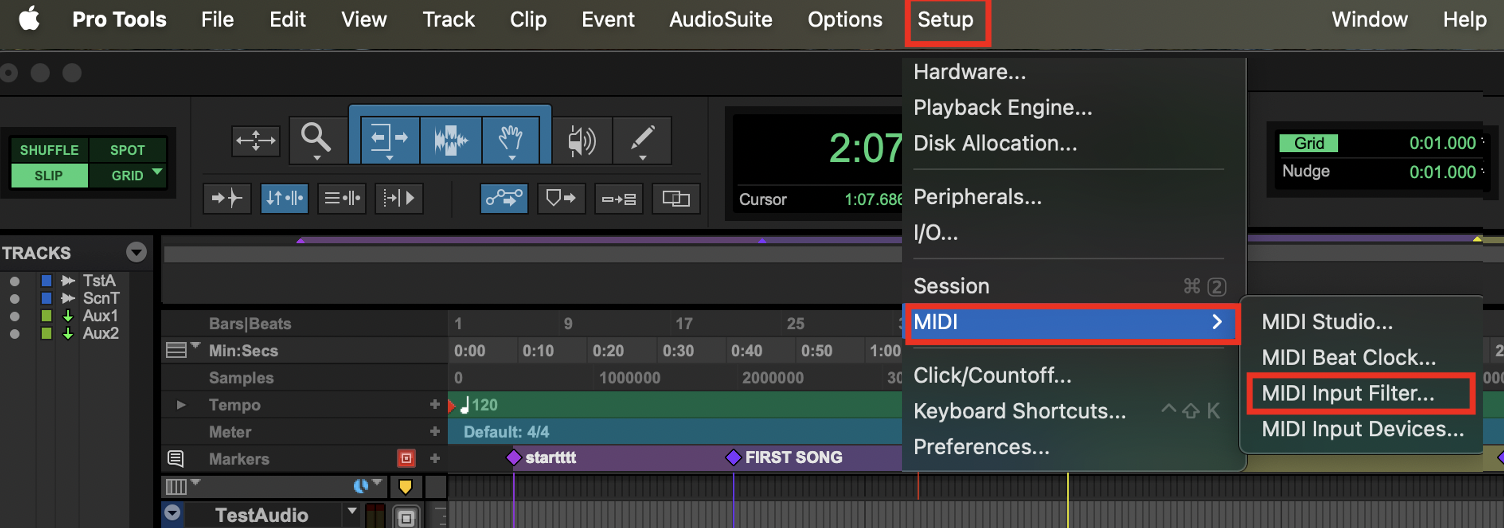
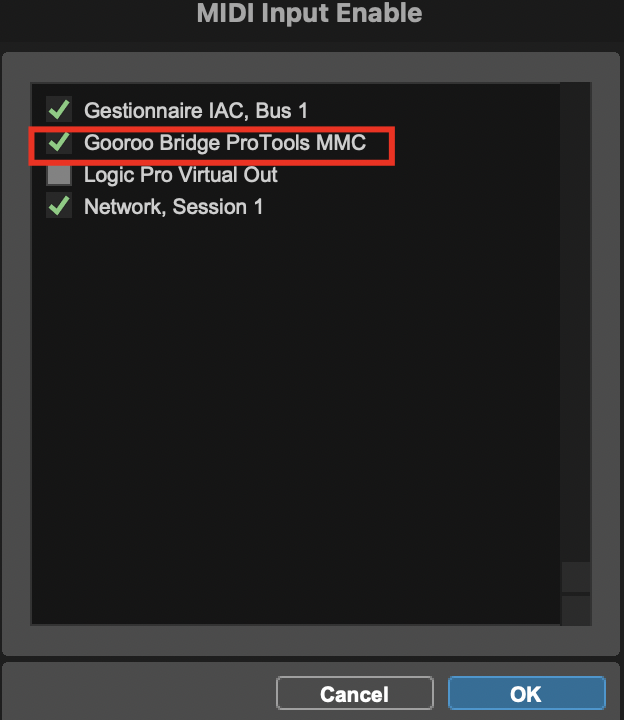
Enable the Gooroo Bridge ProTools MMC MIDI input in Setup → MIDI → MIDI Input Filter…
-
In Setup → Peripherals… → Synchronization, set the MTC Generator Port to Gooroo Bridge ProTools MTC.
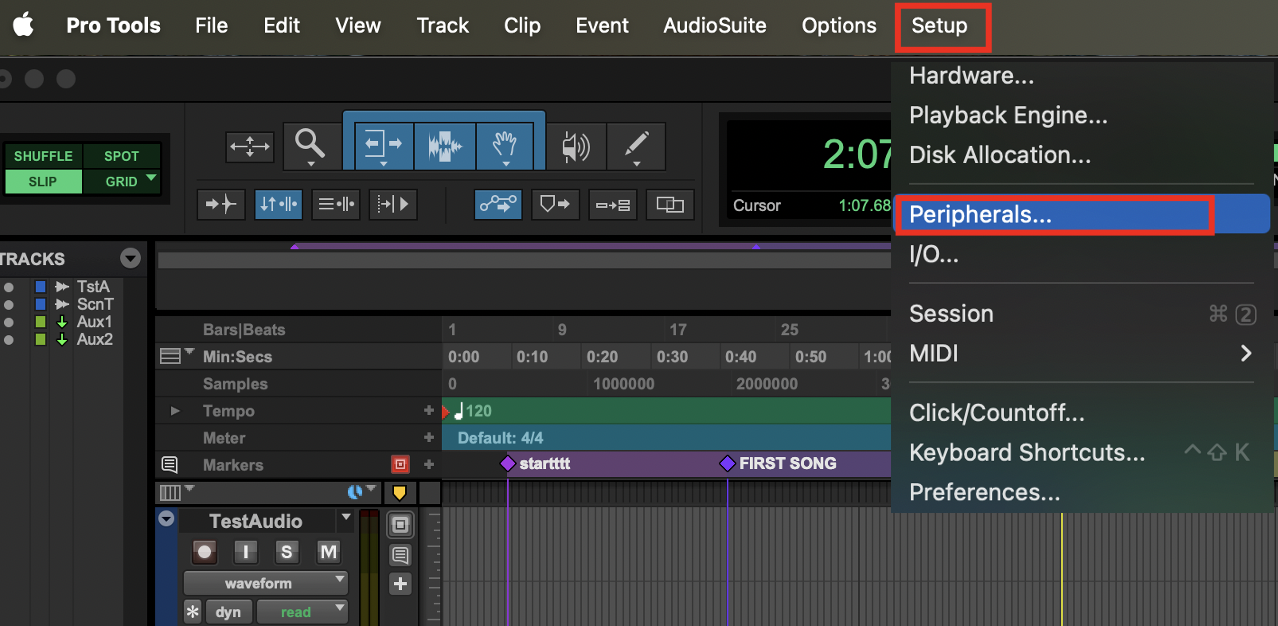

-
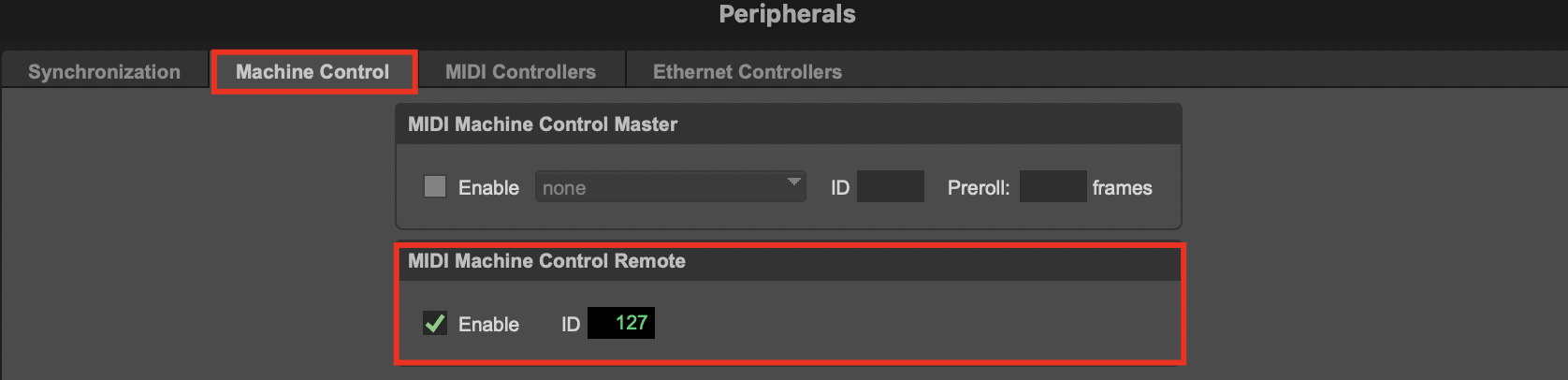
In Peripherals… → Machine Control, enable MIDI Machine Control Remote and set the ID to 127.
Pro Tools properties in GoorooLink
The BRIDGE context section displays the properties of Pro Tools.
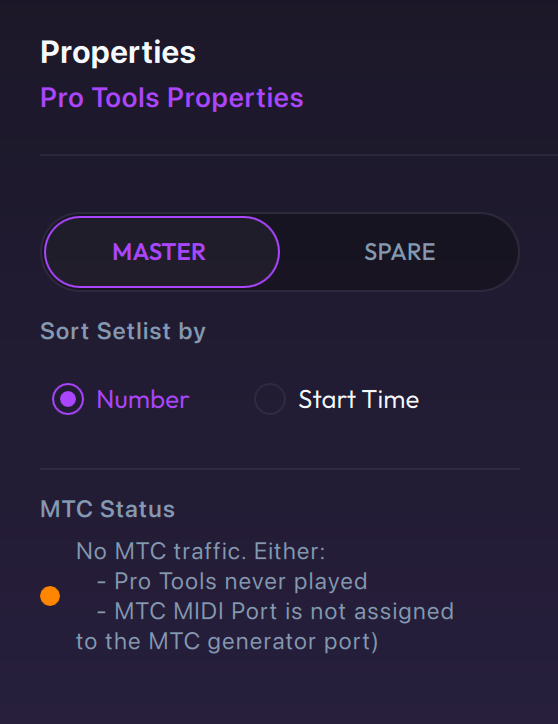
- Master / Spare: select to assign the connected LIOBOX² as Master or as a Spare. Prefer using the Spare assignment when actively using redundancy.
- Sort Setlist by (Number or Start Time): Pro Tools markers are numbered when they are created, but they can be moved freely, so their timecode position and their number can disagree. This option chooses which one defines the order of the setlist.
- MTC Status indicator: to follow the playhead position, Pro Tools must be assigned to the BRIDGE MTC port. This indicator shows that the MTC port is correctly assigned.
Pro Tools only generates MTC while the playhead is moving. MTC is therefore detected only once the settings are done and the playhead has played.
Markers
Pro Tools markers (Memory Locations) are the songs of the LIOBOX².
In Pro Tools, you can use the Memory Location Comments instead of the naming convention to give the extra information. Prefix each piece of information with key:, duration: or bpm:.
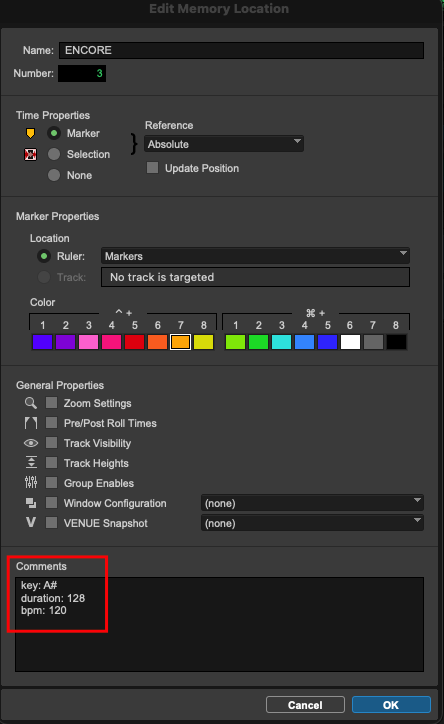
Marker reference must be Absolute
The marker reference must be Absolute; otherwise the marker is discarded.
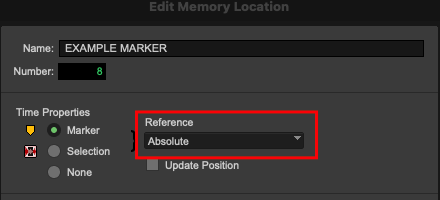
If the Pro Tools Properties panel shows the message "Discarded Markers (reference is not Absolute)", the listed markers will not be forwarded to the LIOBOX².

To clear this error, set the marker reference to Absolute in the Pro Tools Edit Memory Location window.
LIOBOX² modes
Select the PRO TOOLS mode in MENU → MODE.
All tracks mode
Switch to ALL TRACKS mode from the Mode menu.
| Ableton | Reaper |
|---|---|
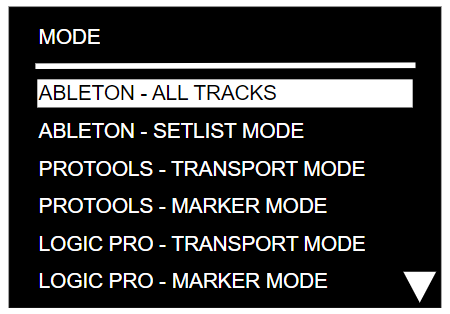 | 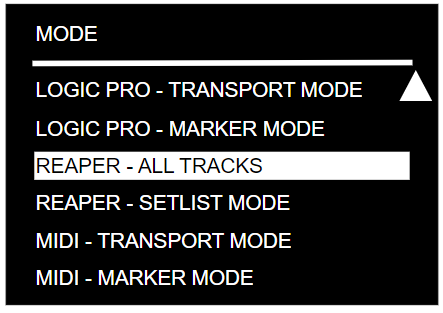 |
ALL TRACKS mode gives access to all the songs of the DAW session, in session order, so you can move to and launch any song of your set.
If Error on duplicate track is enabled, the LIOBOX² checks the song names and warns you when two songs (scenes/locators) have the same name, so you can correct them.
Setlist mode
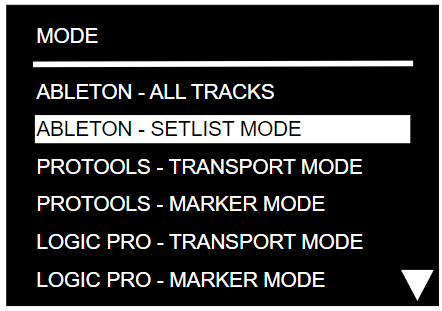
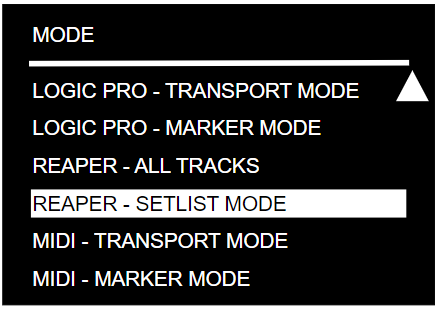
SETLIST mode lets you choose and reorder the songs: the LIOBOX² only displays the songs of the show's setlist, in the order you want. All this without modifying the DAW session or touching the computer.
Setlists can be renamed and are saved in the internal memory of the LIOBOX².
Switch to Setlist mode from the Mode menu:
| Ableton | Reaper |
|---|---|
 |  |
Setlist creation
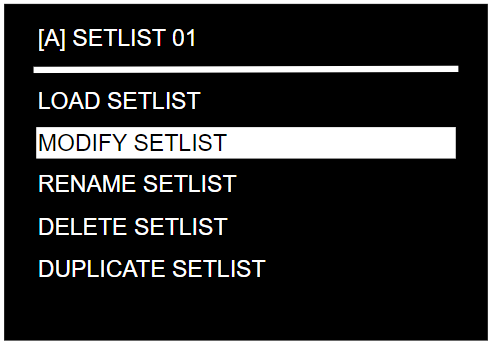
To create a setlist, select + ADD [MODE] SETLIST in MENU → SETLIST. First select the mode (Pro Tools) in MENU → MODE.
The first letter of the mode (A/B for Ableton/Bitwig, R for Reaper, …) is added at the start of the setlist name, to show which mode it belongs to.
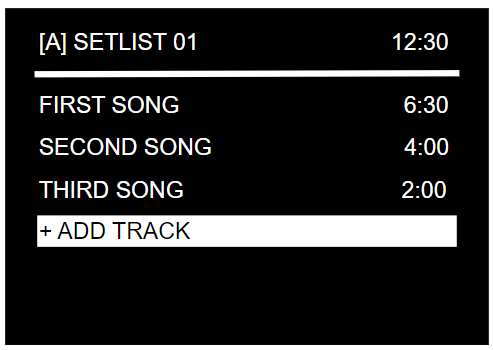
As songs are added, the total duration is displayed at the top of the window, next to the setlist name.

Add songs to the setlist
Once the setlist is created, you can add songs. The song list is loaded directly from the active Pro Tools project.
To add a song, open the setlist, select MODIFY, then + ADD TRACK. The list of loaded songs appears: click a song to add it. The same song can be added several times.
The duration of each song is shown next to its name (it comes from the song title, see the naming convention).
| Setlist menu | Setlist / MODIFY menu | ADD TRACK menu | Setlist / MODIFY menu |
|---|---|---|---|
 |  | 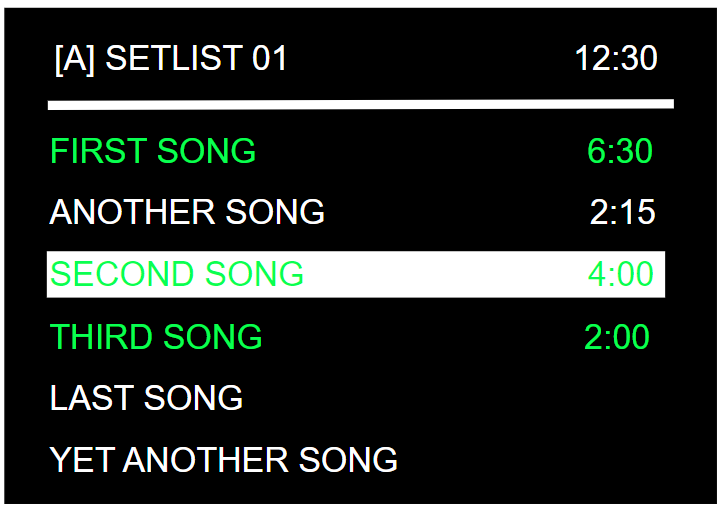 |  |
Songs already in the setlist appear in green.
Manage and load setlists
A setlist can be renamed (12 characters maximum), duplicated and modified at any time. See Setlists.
If a song in the loaded setlist is not present in the DAW session, it is displayed in red on the Play screen. Up to 9 setlists can be created.
To use a setlist, select SETLIST mode in the MODE menu and load the setlist.
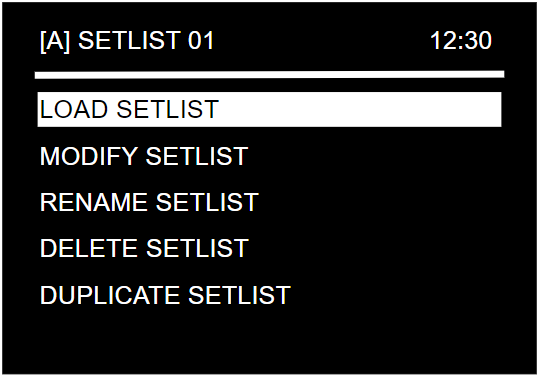
The setlist name appears in red on the Play screen if the loaded setlist's mode is different from the active mode.
Track position in session/setlist
The position of the current song in the session or setlist is constantly displayed at the top of the screen.
Track naming convention
The LIOBOX² can display the BPM, key and duration of each song. Enter them in the song name using this naming convention:
song_name ; bpm ; key ; duration
- Write the duration as
mm:ss. - If you do not need a value, leave the field empty and omit the
;. - To keep a song from being sent to the LIOBOX², start its name with
(). Example:()song number 1.

Compatible characters
The following characters are compatible with the LIOBOX². Any other character is filtered out.
- Upper case:
AtoZ - Numbers:
0to9 - Parentheses:
( ) - Square brackets:
[ ] - Hashtag:
# - Ampersand:
& - Plus:
+ - Slash:
/ - Space
Names that are not transmitted
A name starting with one of the following is not transmitted to the LIOBOX²:
()[](LOOP_**>>>+LOOP
The following marker names are also filtered out from the marker list received by the LIOBOX²:
AUTOSTOP(STOP)(NEXT)STOPSONG ENDPLAYNEXTSTOPBOTEASY LOOPERNEXTCUE
Pad features
Pads can be reassigned from MENU → PAD CONFIG (see Pad config). In Pro Tools mode, the following features are available:
- NONE
- PLAY LIOBOX MARKER
- PLAY (TRANSPORT)
- PAUSE
- STOP
- PREV LIOBOX MARKER
- PREV MARKER (TRANSPORT)
- FAST-REWIND
- RESTART MARKER
- NEXT LIOBOX MARKER
- NEXT MARKER (TRANSPORT)
- FAST-FORWARD
- LOOP IN/OUT, LOOP IN, LOOP OUT, LOOP ON/OFF, LOOP CREATE X
- CUSTOM MIDI
Notes:
- Play or Play (Transport) corresponds to the DAW Play.
- Play LIOBOX Marker plays the next song.
- Fast-Rewind and Fast-Forward can only be assigned to the Long press pad event.
- Next or Prev Marker (Transport) corresponds to the DAW Next event (next/previous in the project).
- Next or Prev LIOBOX Marker selects the next or previous marker from the setlist.
- The loop features are described in Loop on-the-fly.
Redundancy
Redundancy in Pro Tools is achieved using the LIOBOX² as a central coordinator, together with Pro Tools Studio features. See also the generic Redundancy page.
Pro Tools Studio (or higher) is mandatory: the Jam Sync feature is required to enable redundancy.
Pro Tools sessions can be large: jumping to a marker and launching a command can take Pro Tools from dozens to hundreds of milliseconds, so fire-and-forget commands would leave the two computers out of sync.
To prevent this, the LIOBOX² and GoorooLink constantly check that Pro Tools is ready, and synchronize the commands so they start at the same time on both computers.
GoorooLink therefore relies heavily on MTC, and the following Pro Tools features must be enabled:
-
Sync Point enabled

-
Setup → Session → Session Timecode Settings: Jam Sync
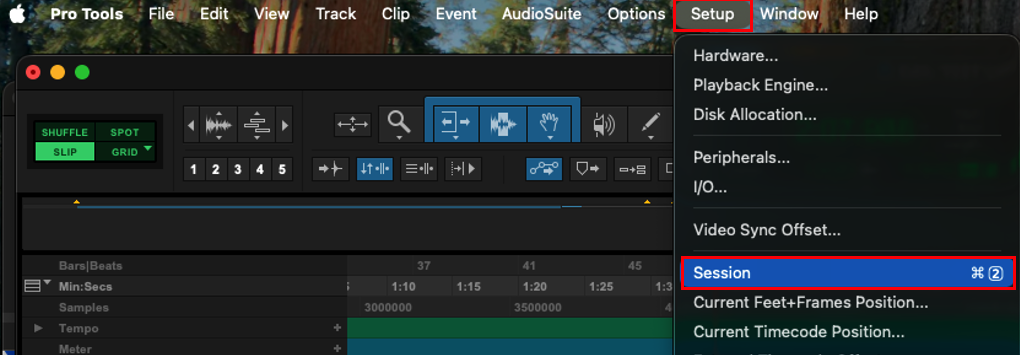
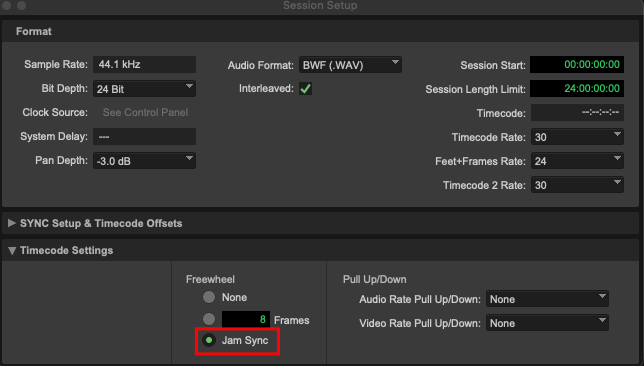
Enable these features on the Spare computer. They are optional on the Master computer.
On both the Master and Spare computers, enable Synchronization → MTC:
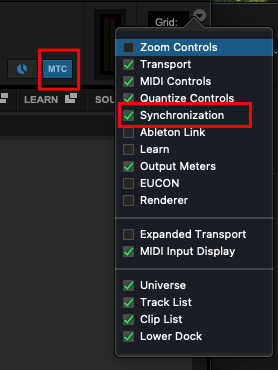
Because the LIOBOX² MASTER, Pro Tools and the LIOBOX² SPARE are constantly synchronized, commands behave differently:
- Play, Restart, Next, Prev commands
- Master side: a slight delay (a few hundred milliseconds) at launch, to make sure the playhead is positioned and the Spare is ready.
- Spare side: the playhead catches up approximately 1 second after the Master starts.
- Any of these commands sent while the Spare catches up is discarded.
- Pause command
- Deferred while Play, Restart, Next or Prev is launching and the Spare is synchronizing.
- Deactivated commands
- Fast forward and fast rewind commands are ignored if both Master and Spare are connected.
Troubleshooting
- Markers missing on the LIOBOX²: check the marker reference is Absolute.
- No MTC detected: see the MTC note in Pro Tools properties.
- For the green check icon and song names, see Troubleshooting.