Ableton
- Integration: native, through the LIOBOX² Ableton script. GoorooLink is not required.
- Features: song list, setlists, transport, autonext, autostop, loop, redundancy.
- Needed: the script matching your Ableton version (see Covered versions).
Setup
Before connecting the LIOBOX² to the computer, install the script that matches your Ableton version. The script is a small folder that lets Ableton and the LIOBOX² exchange data.
When using two computers in redundancy, load the script with the "Spare" extension on the second computer, so that the LIOBOX² can tell the two computers apart.
Ableton 10, 11, 12.0 and 12.1 use different Python versions, so you must load the script that matches your version of Ableton.
The GoorooLink software can install and update the Ableton scripts for you, and shows which scripts are compatible with your LIOBOX² firmware.
Add the Ableton script on macOS
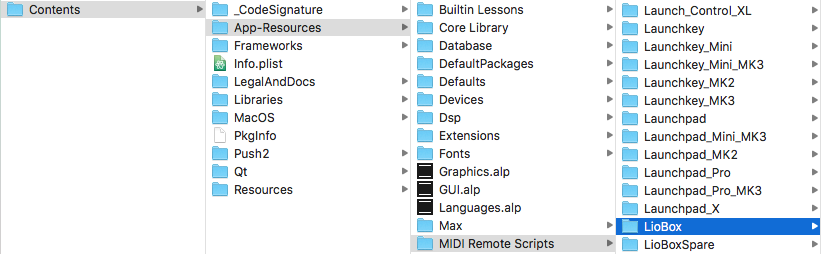
- In the Applications folder, right-click on the Ableton icon and select Show Package Contents.
- Drag the scripts that match your Ableton version into the
MIDI Remote Scriptsfolder.
Add the Ableton script on Windows
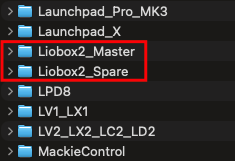
Copy the script folders Liobox2_Master and Liobox2_Spare into the following folder:
<path_to_Ableton>/Ableton/<version>/Resources/MIDI Remote Scripts
Load the script in Ableton
-
Connect the LIOBOX² to the computer and start Ableton.
-
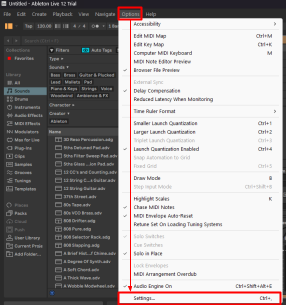
In Options → Settings, select Link, Tempo & MIDI.
-
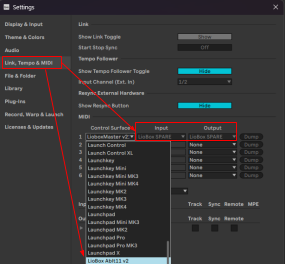
Select the script in a Control Surface dropdown.
-
Assign the Liobox Port 1 to both Input and Output.

The script works the same way in Session and Arrangement view.
Script advanced features
The Ableton script supports advanced features:
- Autonext: a marker that asks the LIOBOX² to launch the next song. The command is executed by the LIOBOX².
- Autostop: a marker that stops playback.
- Loop
Autonext
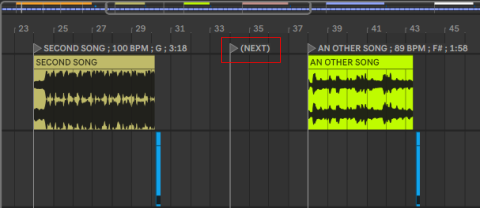
Autonext sends a "Next" request that launches the next marker of the LIOBOX² (not the next marker of the session).
To use this feature, add a (NEXT) marker in your session. The command is executed when the playhead passes over it.
Autostop
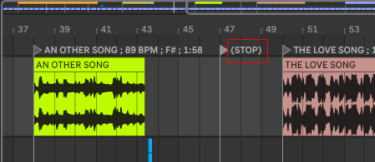
Similarly, the "Stop" marker triggers a STOP in Ableton itself (not from the LIOBOX²).
To use this feature, simply add a (STOP) marker in your session. The command is executed when the playhead passes over it.
Loop
LOOP markers automate the Ableton loop section:
(LOOP): creates a 4-beat infinite loop(LOOP X): creates an infinite loop of X beats(LOOP X // Y): creates a loop of X beats that repeats Y times and then deactivates
Loops can also be created on the fly from the LIOBOX², see Loop on-the-fly.
Loop on-the-fly
The LIOBOX² pads can control the Ableton loop:
- Loop in: sets the loop start marker. The marker is set to the previous bar/beat.
- Loop out: sets the loop end marker. The marker is set to the next bar/beat.
- Loop in/out: alternates between the two. If loop in was set, the next press sends loop out, and the other way around.
- Loop on/off: turns the loop on or off.
- Loop create X: creates a loop of a predefined length of X beats (X from 1 to 127).
Loop out always turns the loop on once it is created. When the playhead reaches the loop end marker, it jumps back to the loop start marker, and keeps looping until you turn the loop off.
Assign these features to pads in Pad config. By default, "Loop In" snaps to the closest previous bar. You can change this to beat in the advanced settings.
MIDI OUT: connection with an external MIDI instrument
The LIOBOX² has a second virtual MIDI port that lets you send MIDI messages (Note, Control Change, Program Change) from Ableton to an external instrument.
- On the MIDI track, open the MIDI To selector.
- Select the LIOBOX² port 2 (LioBox (Port 2)).

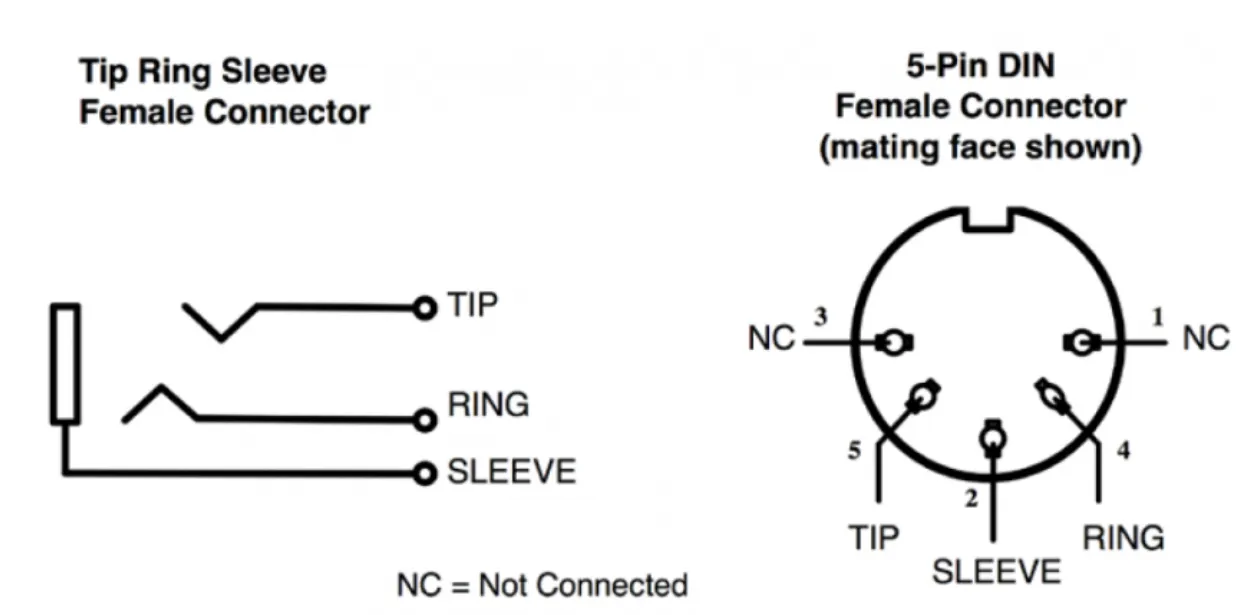
To connect the external instrument, use a 3.5 mm jack cable, or a MIDI DIN to 3.5 mm jack adapter (also called Type A MIDI).
LIOBOX² modes
Select the ABLETON mode in MENU → MODE.
All tracks mode
Switch to ALL TRACKS mode from the Mode menu.
| Ableton | Reaper |
|---|---|
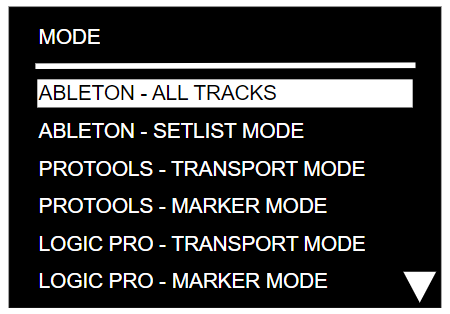 | 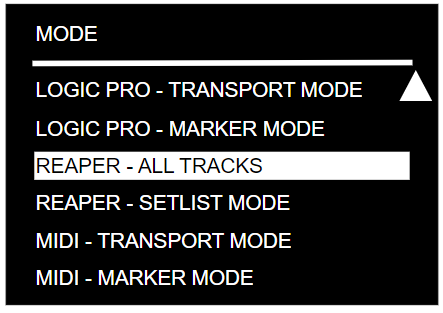 |
ALL TRACKS mode gives access to all the songs of the DAW session, in session order, so you can move to and launch any song of your set.
If Error on duplicate track is enabled, the LIOBOX² checks the song names and warns you when two songs (scenes/locators) have the same name, so you can correct them.
Setlist mode
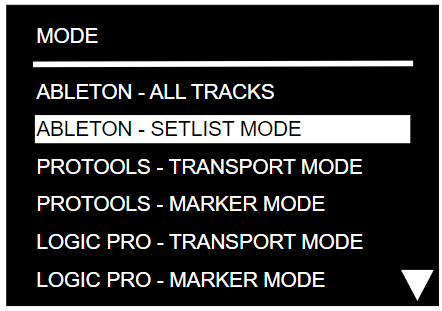
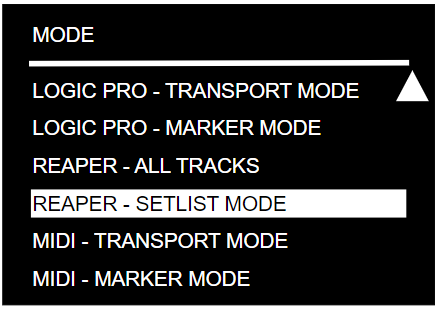
SETLIST mode lets you choose and reorder the songs: the LIOBOX² only displays the songs of the show's setlist, in the order you want. All this without modifying the DAW session or touching the computer.
Setlists can be renamed and are saved in the internal memory of the LIOBOX².
Switch to Setlist mode from the Mode menu:
| Ableton | Reaper |
|---|---|
 |  |
Setlist creation
To create a setlist, select + ADD [MODE] SETLIST in MENU → SETLIST. First select the mode (Ableton) in MENU → MODE.
The first letter of the mode (A/B for Ableton/Bitwig, R for Reaper, …) is added at the start of the setlist name, to show which mode it belongs to.
As songs are added, the total duration is displayed at the top of the window, next to the setlist name.

Add songs to the setlist
Once the setlist is created, you can add songs. The song list is loaded directly from the active Ableton project.
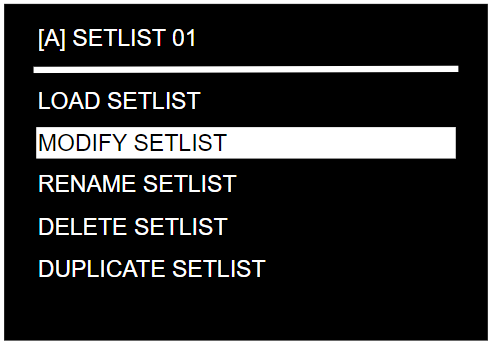
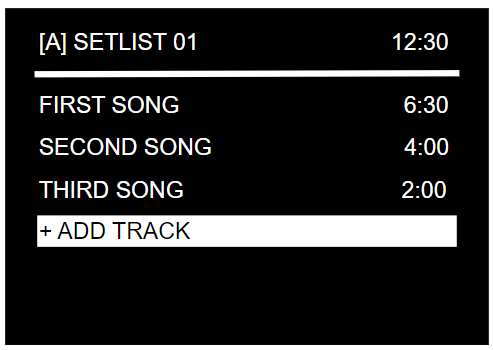
To add a song, open the setlist, select MODIFY, then + ADD TRACK. The list of loaded songs appears: click a song to add it. The same song can be added several times.
The duration of each song is shown next to its name (it comes from the song title, see the naming convention).
| Setlist menu | Setlist / MODIFY menu | ADD TRACK menu | Setlist / MODIFY menu |
|---|---|---|---|
 |  | 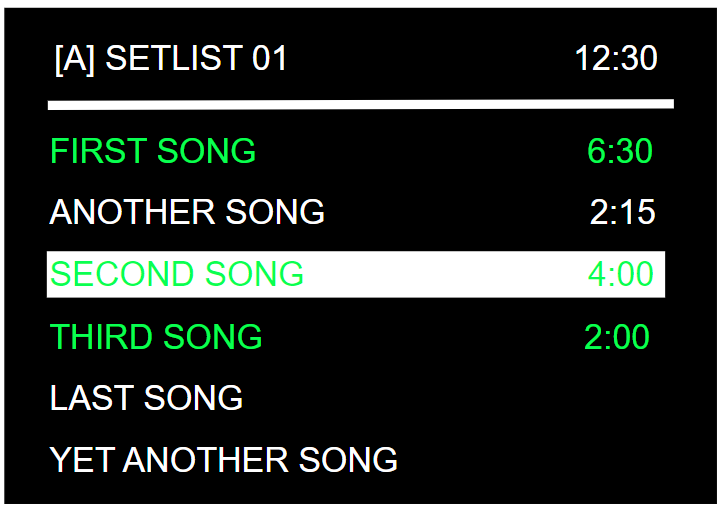 |  |
Songs already in the setlist appear in green.
Manage and load setlists
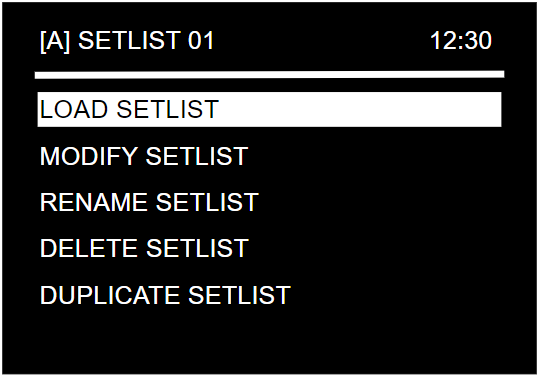
A setlist can be renamed (12 characters maximum), duplicated and modified at any time. See Setlists.
If a song in the loaded setlist is not present in the DAW session, it is displayed in red on the Play screen. Up to 9 setlists can be created.
To use a setlist, select SETLIST mode in the MODE menu and load the setlist.
The setlist name appears in red on the Play screen if the loaded setlist's mode is different from the active mode.
Track position in session/setlist
The position of the current song in the session or setlist is constantly displayed at the top of the screen.
Track naming convention
The LIOBOX² can display the BPM, key and duration of each song. Enter them in the song name using this naming convention:
song_name ; bpm ; key ; duration
- Write the duration as
mm:ss. - If you do not need a value, leave the field empty and omit the
;. - To keep a song from being sent to the LIOBOX², start its name with
(). Example:()song number 1.

Compatible characters
The following characters are compatible with the LIOBOX². Any other character is filtered out.
- Upper case:
AtoZ - Numbers:
0to9 - Parentheses:
( ) - Square brackets:
[ ] - Hashtag:
# - Ampersand:
& - Plus:
+ - Slash:
/ - Space
Names that are not transmitted
A name starting with one of the following is not transmitted to the LIOBOX²:
()[](LOOP_**>>>+LOOP
The following marker names are also filtered out from the marker list received by the LIOBOX²:
AUTOSTOP(STOP)(NEXT)STOPSONG ENDPLAYNEXTSTOPBOTEASY LOOPERNEXTCUE
Pad features
Pads can be reassigned from MENU → PAD CONFIG (see Pad config). In Ableton mode, the following features are available:
- NONE
- PLAY LIOBOX MARKER
- PLAY (TRANSPORT)
- PAUSE
- STOP
- PREV LIOBOX MARKER
- PREV MARKER (TRANSPORT)
- FAST-REWIND
- RESTART MARKER
- NEXT LIOBOX MARKER
- NEXT MARKER (TRANSPORT)
- FAST-FORWARD
- LOOP IN/OUT, LOOP IN, LOOP OUT, LOOP ON/OFF, LOOP CREATE X
- CUSTOM MIDI
Notes:
- Play or Play (Transport) corresponds to the DAW Play.
- Play LIOBOX Marker plays the next song.
- Fast-Rewind and Fast-Forward can only be assigned to the Long press pad event.
- Next or Prev Marker (Transport) corresponds to the DAW Next event (next/previous in the project).
- Next or Prev LIOBOX Marker selects the next or previous marker from the setlist.
- The loop features are described in Loop on-the-fly.
Ableton shares its pad memory with Bitwig: a pad assignment made in one mode also modifies the assignment in the other.
Redundancy
Load the Liobox2_Spare script on the second computer, then connect both computers to the LIOBOX². The LIOBOX² compares the song lists of the Main and Spare computers to ensure that the sessions are identical. See Redundancy.
Troubleshooting
If the LIOBOX² does not show the green check icon or the song names, see Troubleshooting. Make sure the script version matches your Ableton version.